
Station groups
Groups sort stations into categories such as Food & Drink, Rides or Shops. A station can belong to several groups, for example a bar can be in both “Food & Drink” and “Outdoor”.
In the online wallet, visible groups become filters on the stations list and quick links on the wallet home page.
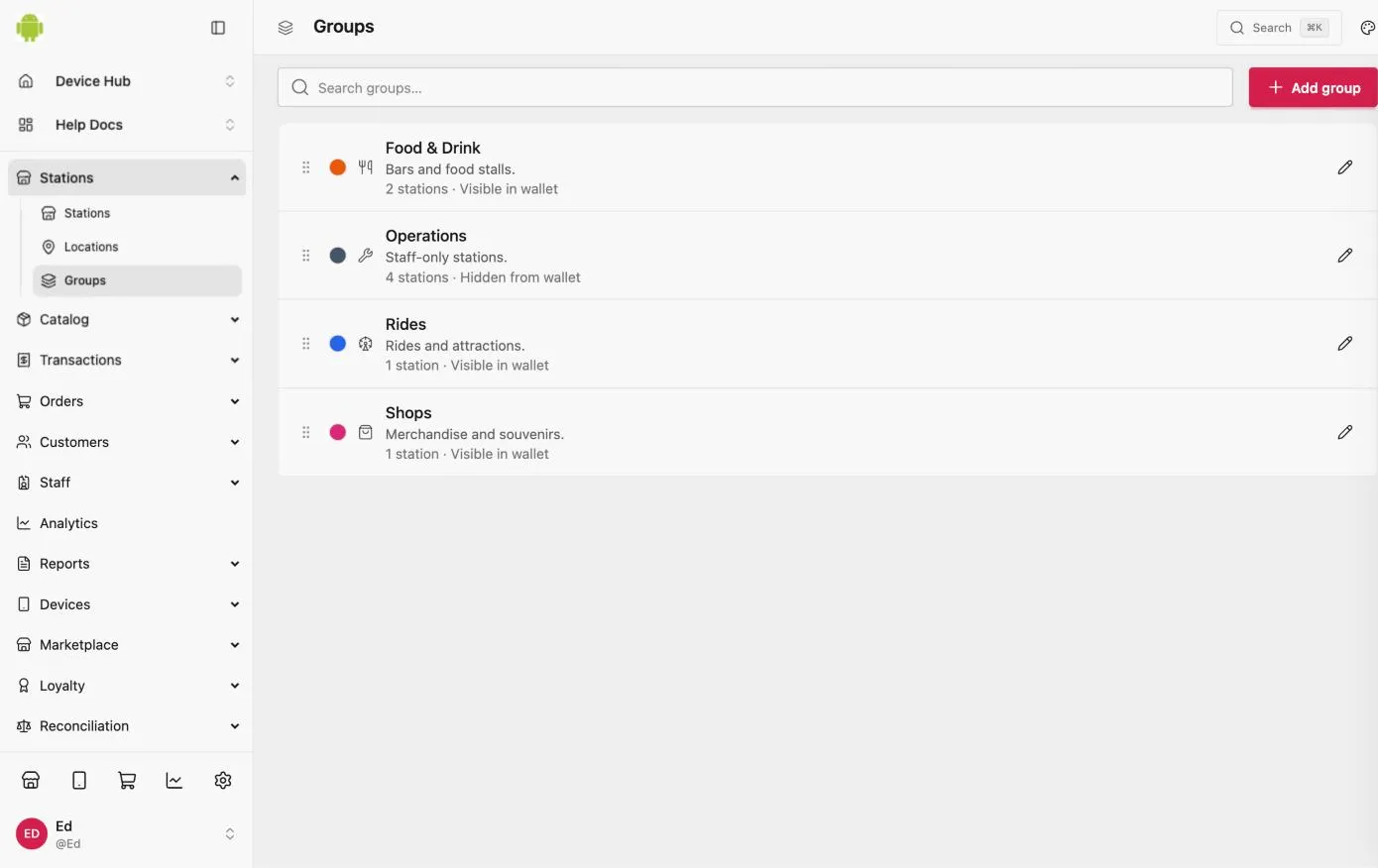
Add a group
- Open Dashboard and select your event.
- Go to Stations → Groups and click Add group.
- Fill in the group details (see below) and tick the stations that belong to it.
- Click Save group.
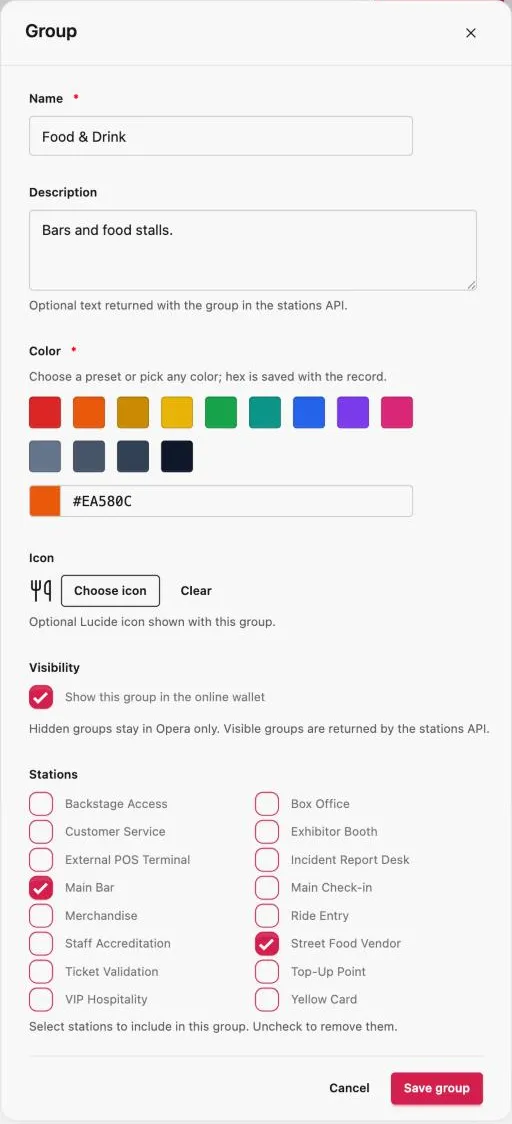
| Field | What it does |
|---|---|
| Name | Required. The name guests see in the wallet, for example “Food & Drink” |
| Description | Optional short text sent with the group to the wallet |
| Color | Required. Pick a preset or any color |
| Icon | Optional icon shown with the group. Click Choose icon to search the icon set. |
| Show this group in the online wallet | Off: the group stays in Opera only, which suits staff-only groups such as top-up and customer service points |
| Stations | The stations in this group. Untick a station to remove it. |
To change a group, click the pencil next to it. The list shows each group’s station count and whether it’s visible in the wallet.
Groups also appear in the station filter on Reports, so you can run a report for all Food & Drink stations at once.
Show groups in the online wallet
Visible groups only appear in the wallet once Show stations is on. Under Settings → Wallet → Online wallet you can:
- drag groups into the order guests see
- switch a group off for the wallet without changing the group itself
- set the order of stations inside each group, and hide single stations
Wallet settings Order and show groups in the online wallet.
Station locations Group stations by area instead.