
Variant groups
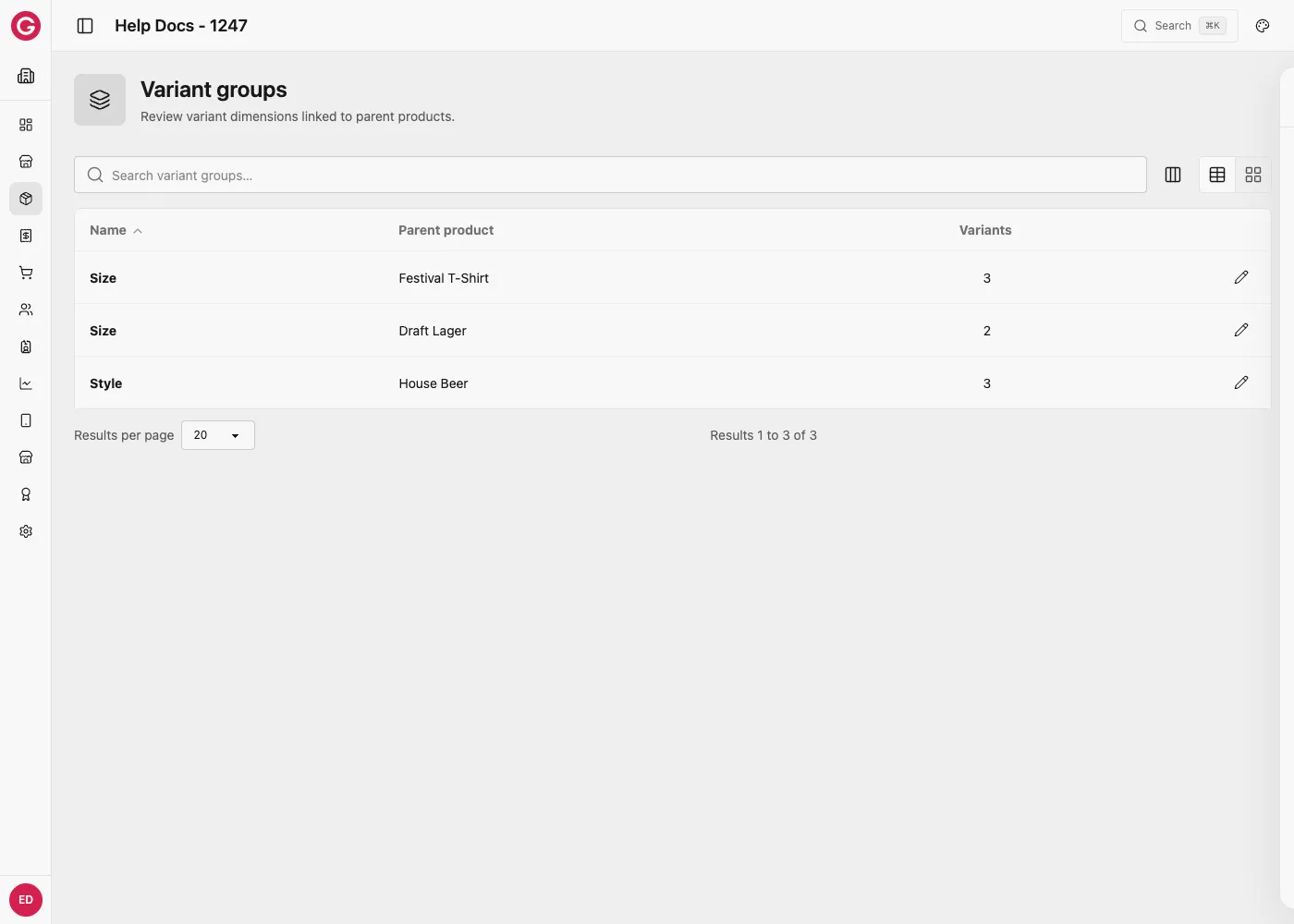
Variant groups are option dimensions on a parent standard product (for example Size or Color). Each variant is its own product SKU under that group. Touch shows variants in the drag order you set.
When groups appear
Variant groups are created when you add variants on a standard product. You can also manage them under Catalog → Variant groups.
Manage a group
- Open Catalog → Variant groups (or open the parent product → Variants).
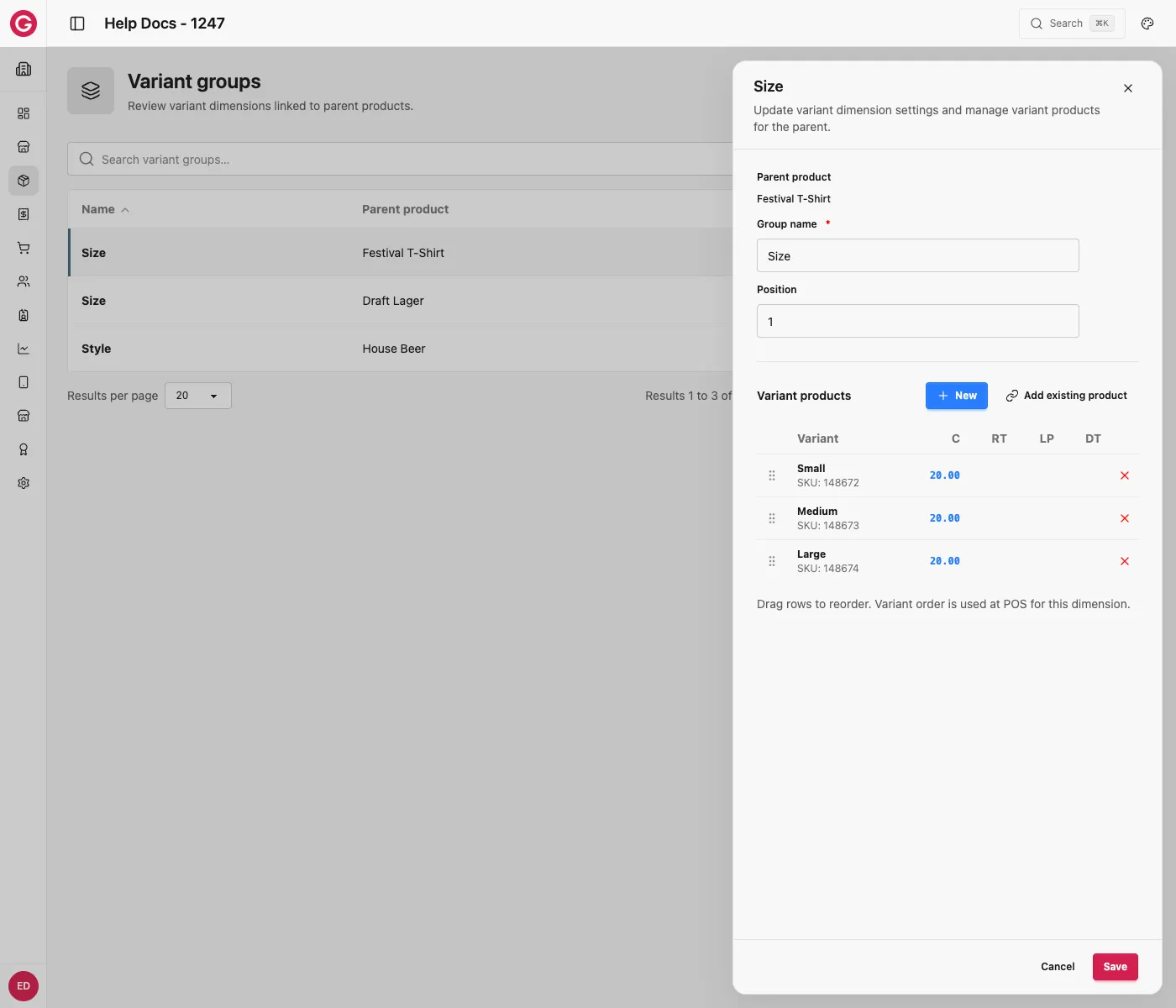
- Set the group Name and order (Position).
- Add existing variant products or create new variant SKUs.
- Drag to reorder variants for POS.
- Detach variants you no longer need.
| Field | Description |
|---|---|
| Owner product | Parent standard product |
| Name | Dimension label (e.g. Size) |
| Position | Sort among groups on the parent |
Worked example: Festival T-Shirt sizes
A merchandise stand sells one t-shirt design in three sizes, each at the same price. Rather than creating three unrelated products, use a single variant group:
- Create a standard product called Festival T-Shirt.
- On that product, open Variants and add a group named Size.
- Create three variant SKUs under it: Small, Medium, and Large.
- Set the same global price on each (for example 20.00 C), since sizes cost the same here.
- Drag the variants into the order they should appear on Touch: Small, Medium, Large.
On the till, a cashier taps Festival T-Shirt, then picks the size the guest wants from the three options shown. Each size is its own SKU for stock and reporting purposes, but they all share the same parent listing so cashiers only see one button on the main screen.
Worked example: Draft Lager cup sizes, each priced differently
Variants do not have to share a price. A bar sells the same beer in two pour sizes, and the larger pour costs more:
- Create a standard product called Draft Lager.
- Open Variants and add a group named Size.
- Create two variant SKUs: Half Pint and Pint.
- Set Half Pint to a global price of 4.00 C, and Pint to 7.00 C.
- Drag Half Pint above Pint so the smaller, cheaper option appears first on Touch.
Unlike the T-Shirt example, each variant here carries its own price. A cashier taps Draft Lager, picks the size, and the basket line shows whichever price belongs to that size, 4.00 C or 7.00 C. Nothing about the variant group setup changes between the two examples; only the prices entered on each SKU differ.
Worked example: a variant dimension that is not a size
Variant groups can represent any option, not just size. A bar wants to sell the same beer product in three different styles:
- Create a standard product called House Beer.
- Open Variants and add a group named Style (not Size).
- Create three variant SKUs: Lager, IPA, and Stout.
- Price each one independently, since different styles often cost different amounts to pour.
The group Name field is just a label for cashiers and reports. Using “Style” instead of “Size” does not change how the feature behaves, variant groups are a generic way to offer several SKUs under one parent, whatever the dimension actually represents for your event.