
Discount Codes
Discount codes appear under Catalog → Discounts when the Discounts module is on (or when discounts already exist).
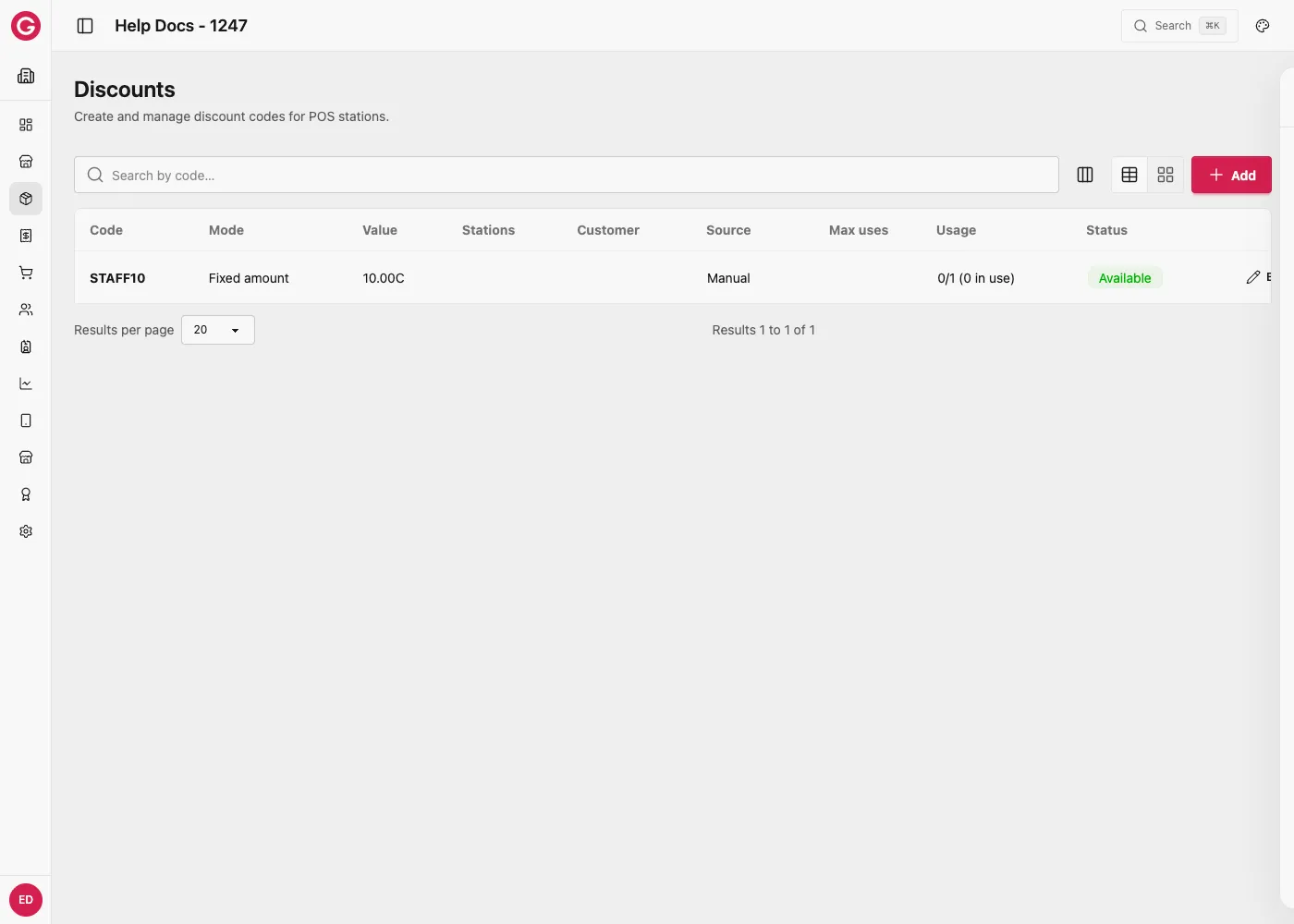
Enable discounts
- Go to Settings → Modules.
- Turn Discounts on.
- Open Catalog → Discounts.
Discount fields
| Field | Description |
|---|---|
| Code | Code cashiers or the system apply |
| Mode | Percentage, Fixed amount, or Free product quantity |
| Products | Scope which products the discount applies to |
| Stations | Scope which stations may use it |
| Application mode | Immediate or Optional |
| Max uses | Optional usage cap |
| Validity window | Optional start/end |
| Hidden | Hide from casual selection when appropriate |
Stations may also require manager approval for discounts (see Station General).
Worked example: a staff discount code
A festival wants its own crew to get a small discount at any bar or vendor station, without needing a manager to approve every sale.
- Open Catalog → Discounts and create a new discount.
- Set Code to
STAFF10so cashiers can find it quickly on Touch. - Set Mode to Fixed amount, and enter
10.00as the amount (10.00 C off the sale). - Leave Products and Stations empty so the code works on anything sold anywhere.
- Set Application mode to Manual so a cashier applies it on request, and Max uses to
1per customer if it should only apply once. - Save.
At the till, a cashier serving a staff member taps Discounts, selects STAFF10, and the sale total drops by 10.00 C before payment. Because no product or station scope was set, the same code works whether the staff member is buying from the bar or a food vendor.
Modules Turn Discounts on.
Station General Discounts on / manager-only.