
Receipts
Enable Receipts under Modules, then open Settings → Receipts.
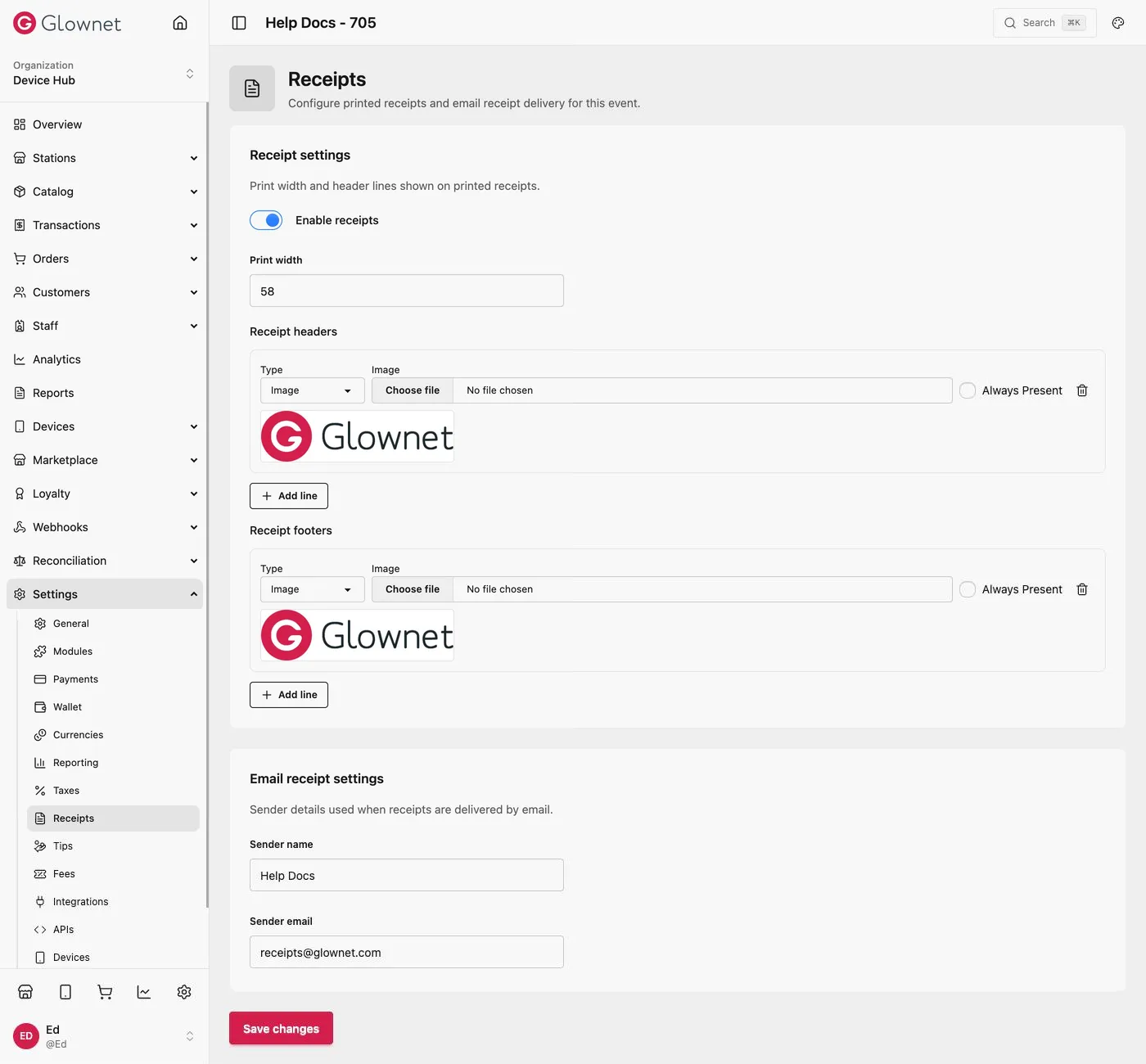
Configure receipts
- Turn Receipts on in Modules.
- Go to Settings → Receipts.
- Enable receipt printing as needed.
- Set print width, header lines, footer lines, and optional email sender name/email.
- Click Save changes.
| Setting | What it does |
|---|---|
| Enable receipts | Turns printed receipts on for the event. |
| Print width | Characters per line on printed receipts (for example 40). A device’s Characters per line in Print Settings overrides it. |
| Receipt headers | Lines printed at the top. For each line choose a Type (Text or Image) and enter the text or choose the image. + Add line adds another; the bin removes one. |
| Receipt footers | Lines printed at the bottom, set up the same way. Footer lines marked Always Present still print on stations that use their own footers. |
| Email receipt settings | Sender name and Sender email used when receipts are emailed to customers. |
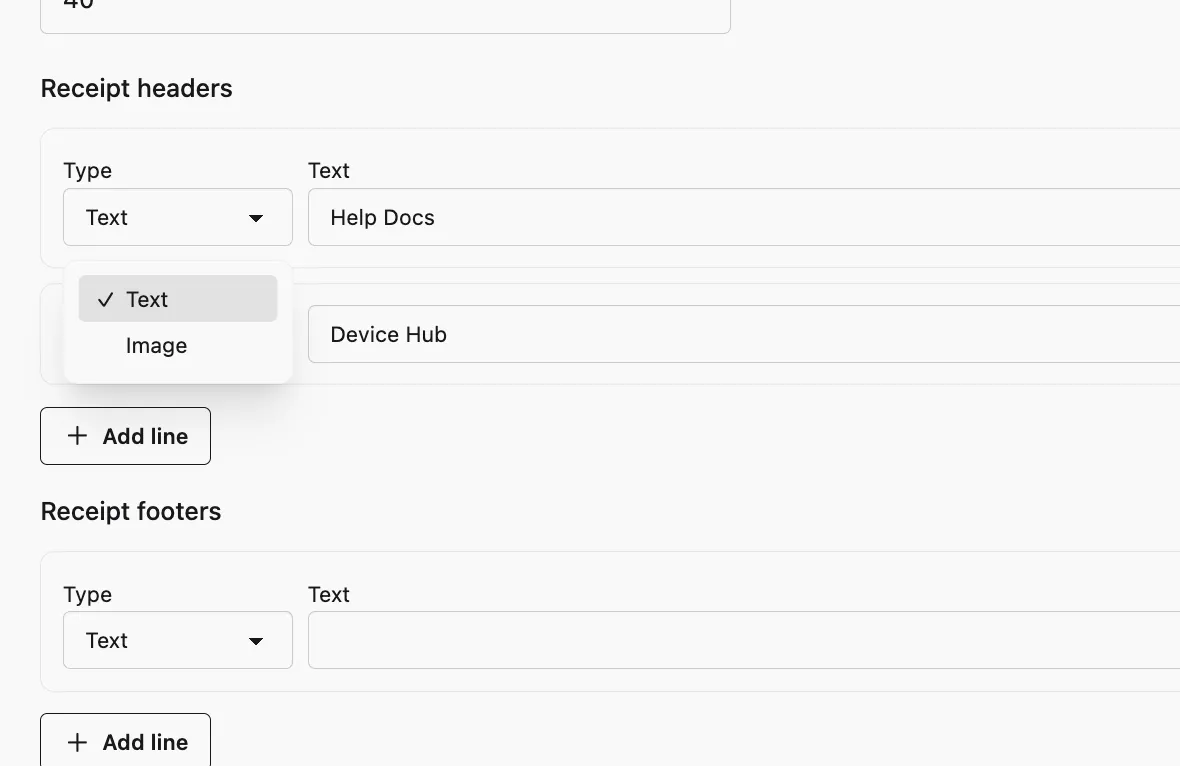
Stations can inherit header lines or override them under Station Receipts (Same as event).
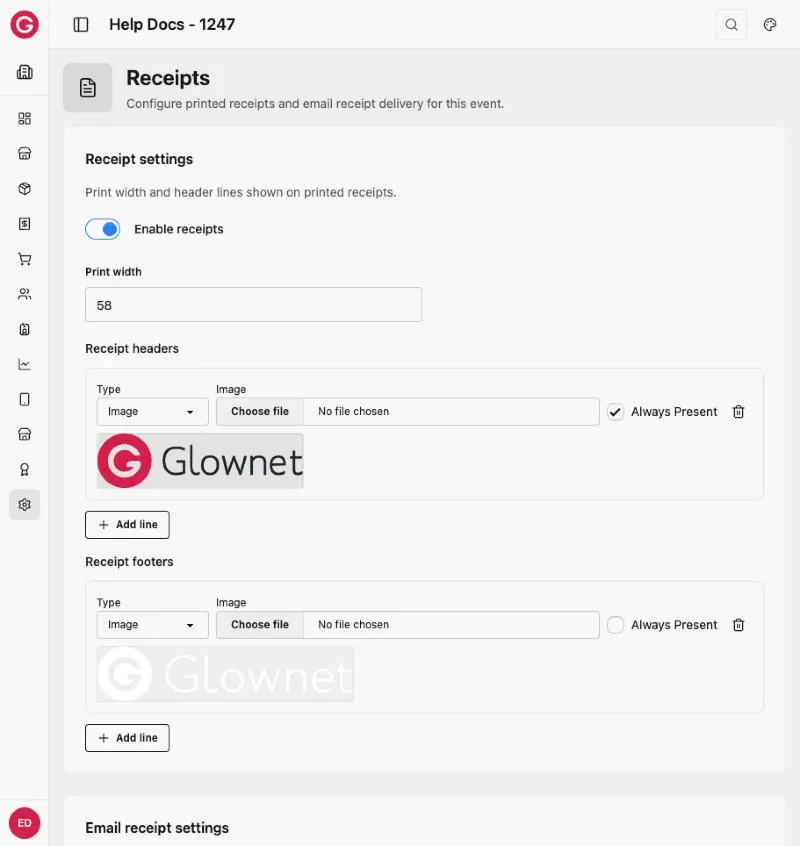
Add an image (for example your logo)
- In Receipt headers or Receipt footers, set a line’s Type to Image.
- Click Choose file and pick the image. Only PNG or JPEG files are accepted.
- Click Save changes. The page shows a preview of each image line.
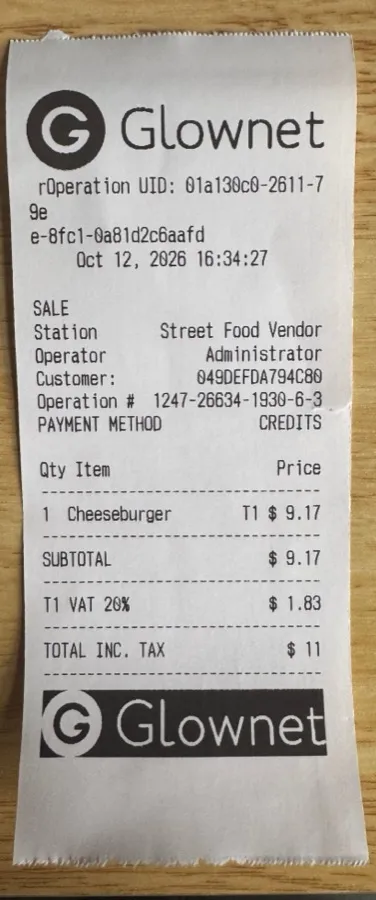
Printed result: the header is a colour logo on a white background and prints cleanly. The footer is a white logo on a transparent background: it prints as a black block with the logo in white.
Station receipts Per-station headers and width.
Print Settings Set up the printer on the device.
Modules Enable Receipts.