Reports
Reports turn the event’s transactions into fixed, printable summaries for a period you choose: a day, a shift, a week or the whole event. Use them for daily finance figures and for closing out cashiers. For charts and drill-downs, use Analytics.
| Report | Use it for |
|---|---|
| Summary Report (Server) | Revenue, wallet balances and cash flow for the period |
| Summary Report (Device) | The same summary, timed by when each transaction happened on the device |
| Box Office Report | Takings at box office stations, by operator, station and payment method |
| Topup Report | Takings at top-up stations, by operator, station and payment method |
| Cashier Report | Box office and top-up takings together, for staff who work both |
Run a report
- Open Dashboard and select your event.
- Go to Reports and pick a report.
- Click the date range to set the Start time and End time. By default the day starts at the Reports start time set under Settings → Reporting.
- Optionally, pick stations or station groups instead of All stations.
- Click Download to save the whole report as a PDF or CSV. Each section also has its own Download.
The header shows the event, the exact period, when the report was run and the currency.
Summary reports
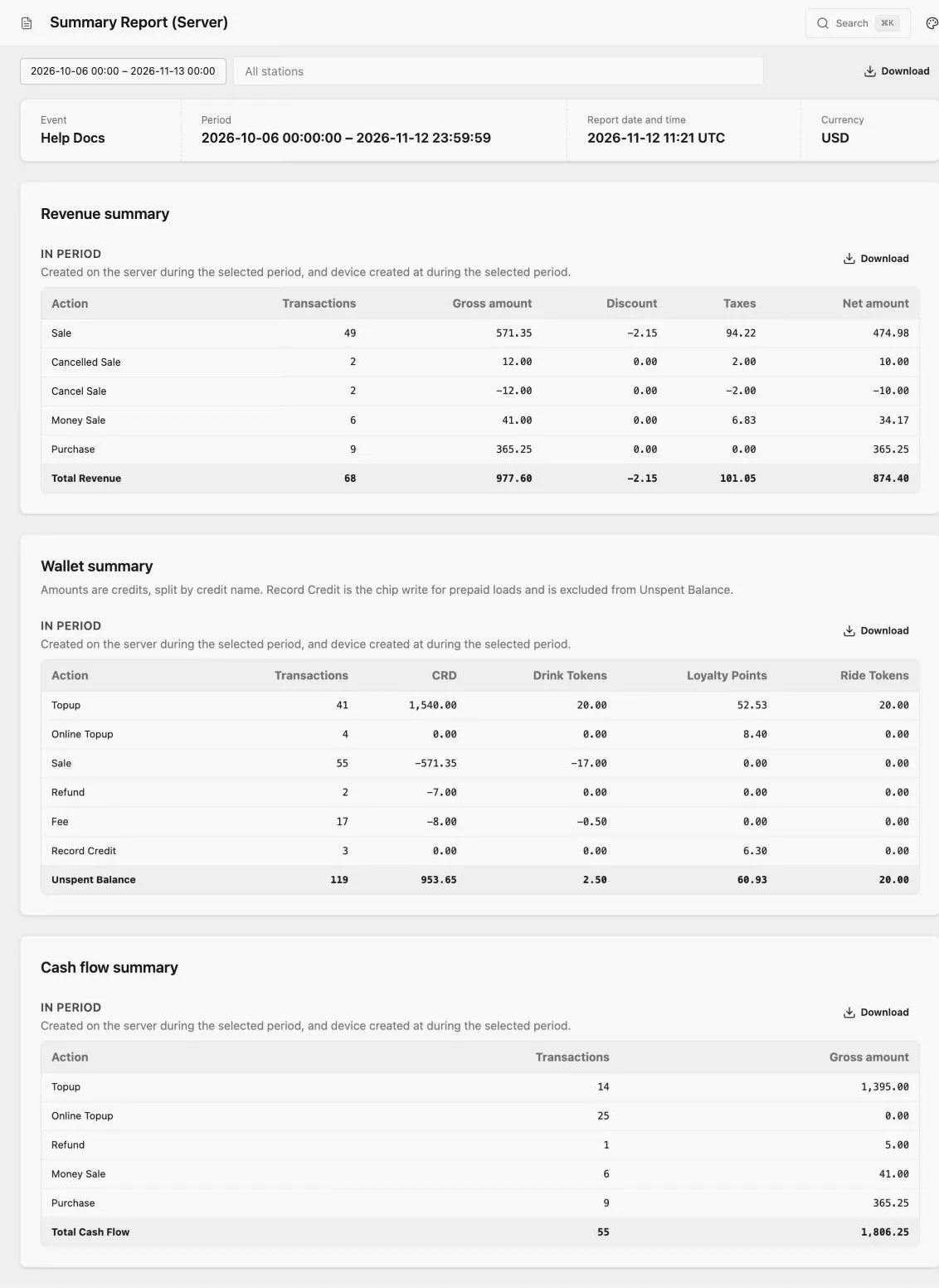
Each summary report has three sections:
- Revenue summary: sales, purchases and their cancellations, with gross amount, discount, taxes and net amount. Total Revenue is what the event earned.
- Wallet summary: how each currency moved in guests’ wallets (top-ups, sales, refunds, fees), split by currency. Unspent Balance is what is still left in wallets. Record Credit (the chip write for prepaid loads) is left out of it.
- Cash flow summary: money that came in or went out, including top-ups, online top-ups, refunds and box office purchases. Total Cash Flow is the money handled.
Server or Device? The Server report counts transactions by when they reached the server as well as by device time. The Device report uses the time each transaction happened on the device, so sales from a device that uploaded late still land in the right shift. Online top-ups, online refunds and cash flow records use their completion time.
Box Office, Topup and Cashier reports
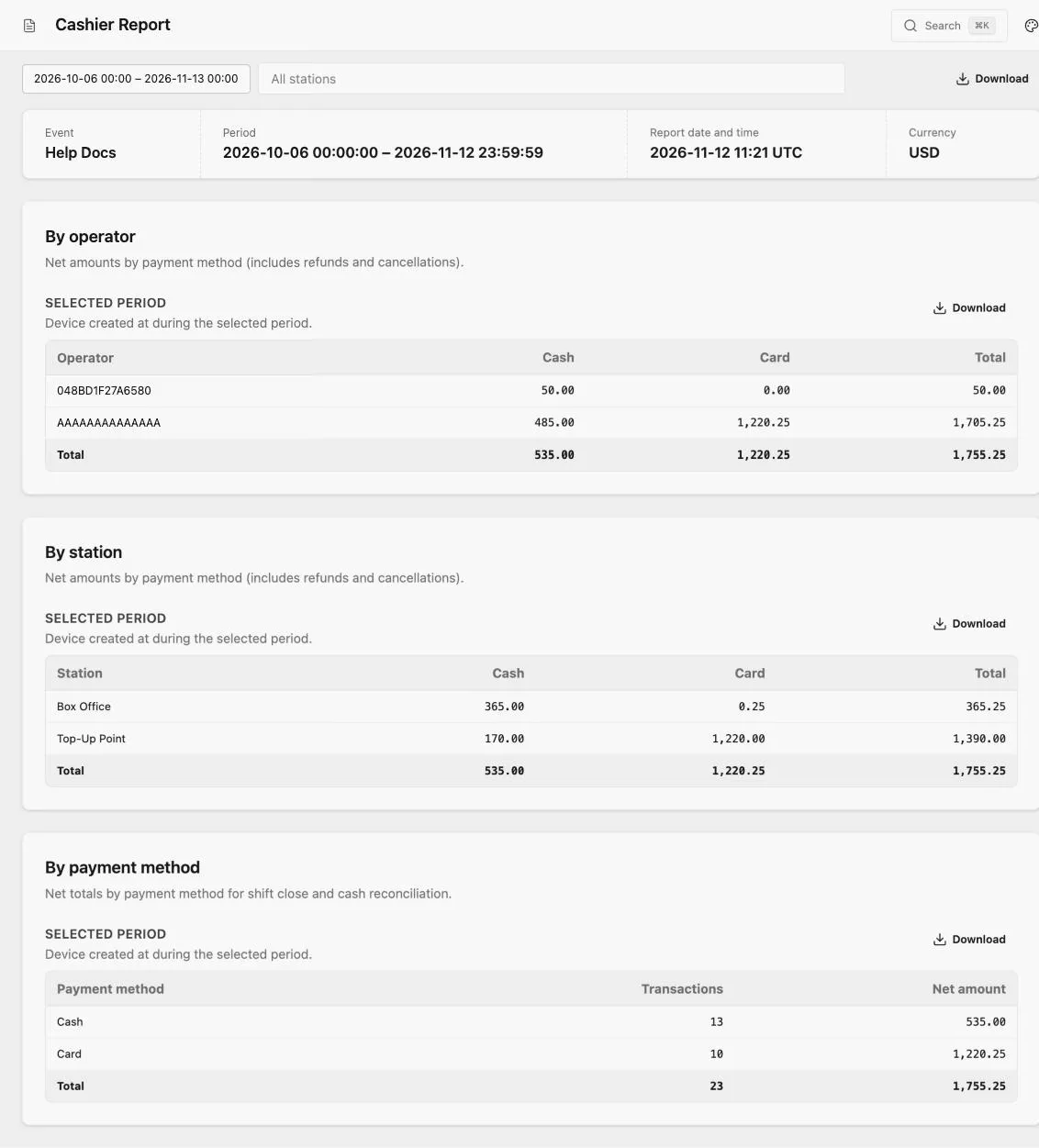
These three reports have the same layout, for closing out cashiers at the end of a shift:
- By operator: net takings per operator, split by payment method.
- By station: net takings per station, split by payment method.
- By payment method: number of transactions and net amount for each payment method.
All amounts include refunds and cancellations. Use the Cashier Report when the same staff work both box office and top-up stations, so each person’s total cash is in one place.