
POS Validation Station
A POS Validation station controls entry to something that is either included in a pass or paid for on the spot, such as a ride or an attraction. A customer with a valid pass (access type) taps their tag and goes in. A customer without one pays for entry with credits or tokens.
- A pass lets one person in per tap. Every tap uses one entry: a counter pass such as a Ride Pass goes down by one, a permanent pass such as an Unlimited Ride Pass never runs out.
- Without a pass, the customer pays, at the price set for each currency the product accepts (for example C 15 in credits or RT 2 in Ride Tokens).
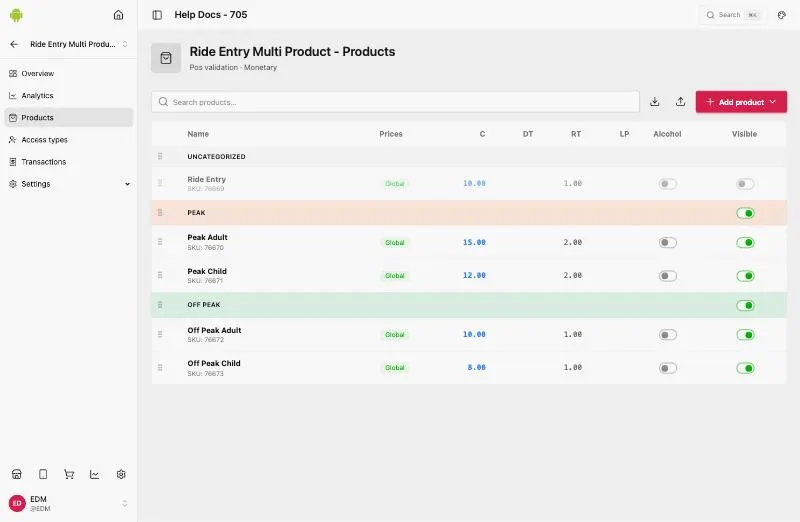
- One product gives a single-product station; several products in categories (for example Peak and Off Peak) give a multi-product station.
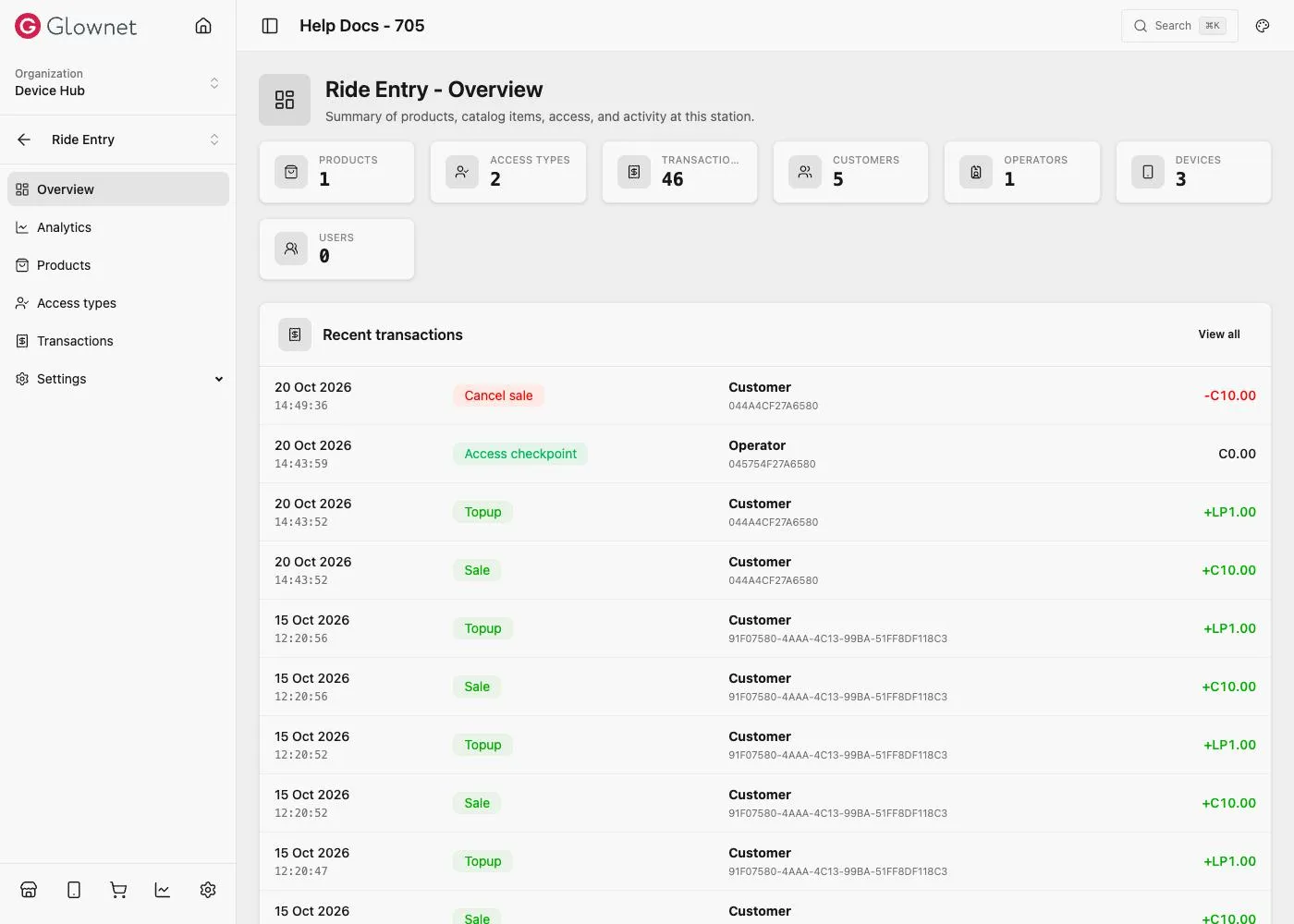
The station menu has:
| Station menu | Use it to |
|---|---|
| Overview | See a summary of the station’s activity. |
| Products | What can be paid for at this station, and its prices. |
| Access types | Which passes let a customer in. |
| Transactions | See every sale and entry made at this station. |
| Settings | Information, General settings, Screen branding, Receipt settings, Payment settings, Users, History. |
Create a POS Validation station
- Create a station and choose POS validation under Monetary.
- Assign products to it, the same way you would for a Bar or Vendor station, with a price for each currency they accept. Group them into categories for a multi-product station. Turn Visible off to hide a product from the device.
Configure which access types it accepts
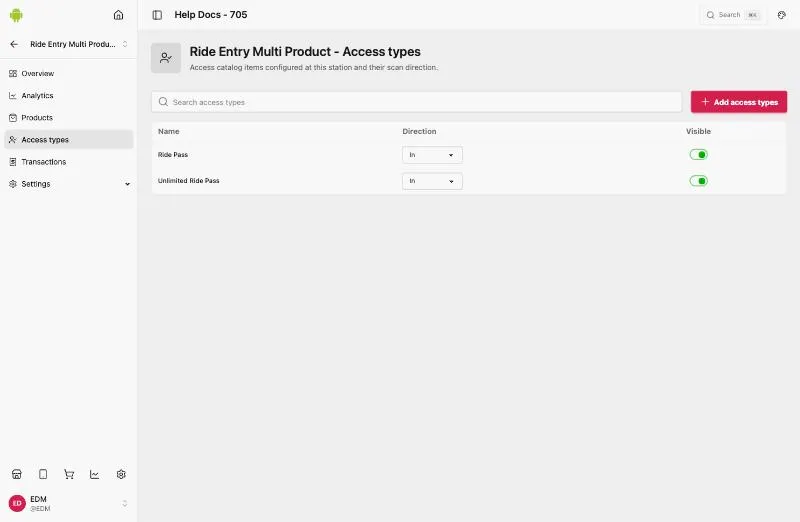
- Open the station and go to Access types.
- Click Add access types.
- Choose a Direction — In or Out.
- Search and select one or more Accesses (the access types defined in Catalog → Access types). Every access you select here uses the direction chosen above.
- Save.
Settings
| Settings page | What it controls |
|---|---|
| Information | Station Name, Location, and Merchant details. |
| General settings | Enforce validation; Enable discounts; Tips; who can refund and reprint; which Wallet credentials are accepted (RFID, QR, external RFID, Apple VAS, Google Smart Tap). |
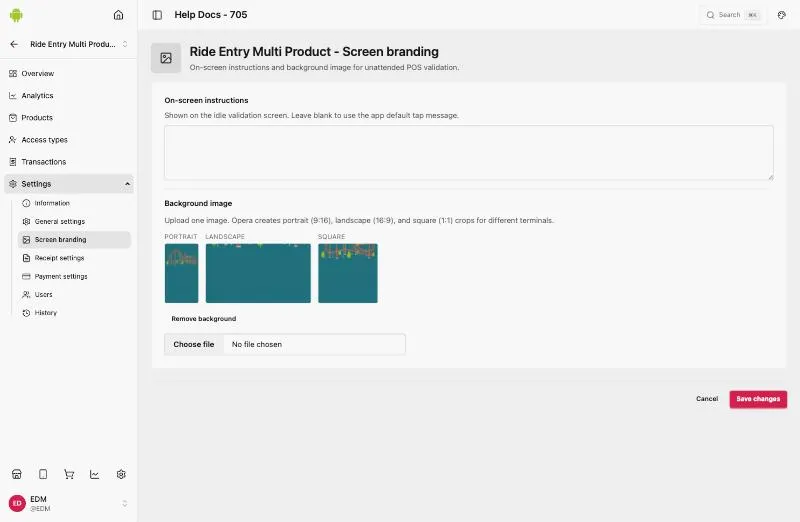
| Screen branding | On-screen instructions for the idle screen (leave blank for the app’s default tap message) and a Background image: see below. |
| Receipt settings | Receipt headers, footers and number prefix. |
| Payment settings | Default payment method and which payment methods are enabled: see Payments. |
| Users | Who can access this station in the Dashboard, and their role. |
| History | A log of changes made to this station’s settings. |
Screen branding
Upload one Background image for the station’s screen on the device: the Dashboard makes portrait, landscape and square versions for different devices. Remove background deletes it. Add On-screen instructions to replace the app’s default tap message.
Payments
Like other monetary stations, a POS Validation station inherits the event’s payment settings and can override them from the station’s own Settings → Payments.
Operate at the station
Refer to the Operator Guide for POS Validation Stations.