
Analytics UI guide
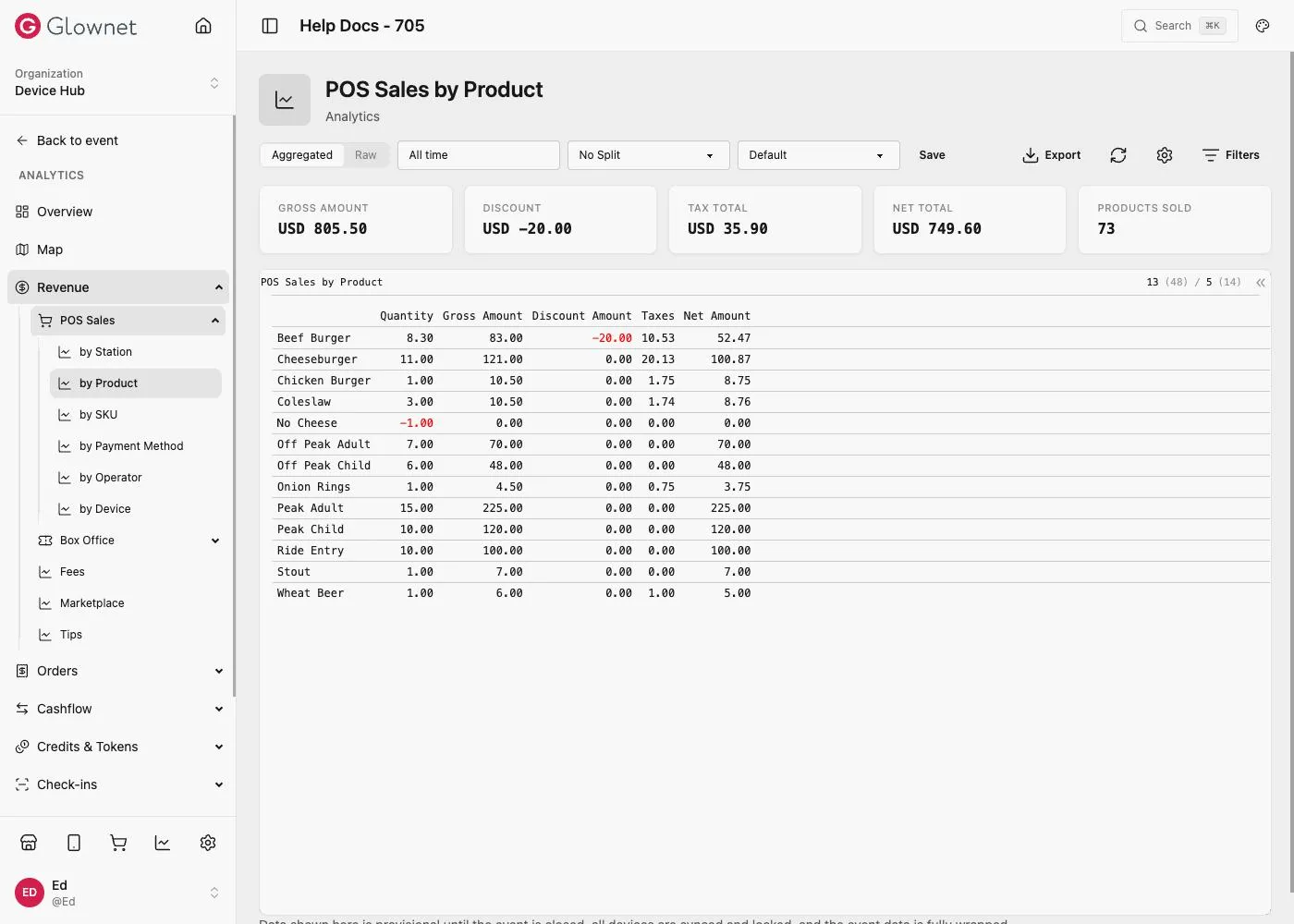
1. Open a report
- Open Analytics.
- Choose a report from the left menu (for example POS Sales, Top-ups, Access).
Many reports show a Summary above the table after loading.
2. Aggregated vs Raw
Use the Aggregated / Raw toggle at the top of the page.
3. Set the date range
- Click the date range control in the toolbar.
- Pick a preset (Today, This Week, This Month, This Year, All Time) or a custom range.
- Apply the range.
Date range is kept when you switch reports.
4. Filter
Filters panel
On some reports, click Filters, choose station / operator / device / payment method values, then close the panel.
Table settings
Use Settings to group, hide columns, and refine what the table shows.
5. Customize the table
- Click Settings in the toolbar.
- Hide/show columns, group by Station / Product / Payment Method / Credit Name, sort metrics, and adjust aggregations.
- Close Settings when finished.
Multi-currency events often group or split by Credit Name on credit sales reports.
6. Save a preset (optional)
If the toolbar shows Preset / Save:
- Configure the table.
- Save with a clear name (for example “Sales by station (monthly)”).
- Reopen the same report later and select the preset.
7. Export CSV
- Set date range, filters, and table settings.
- Click Export.
- Download the CSV.
Export uses your current table view.
If something looks wrong
| Issue | Check |
|---|---|
| Numbers too small | Date range; station-scoped view |
| Missing report | Roles or feature flags |
| Export mismatch | Re-apply settings, then export again |