
Loyalty program and tiers
After Loyalty is enabled, open Loyalty → Program and Loyalty → Tiers.
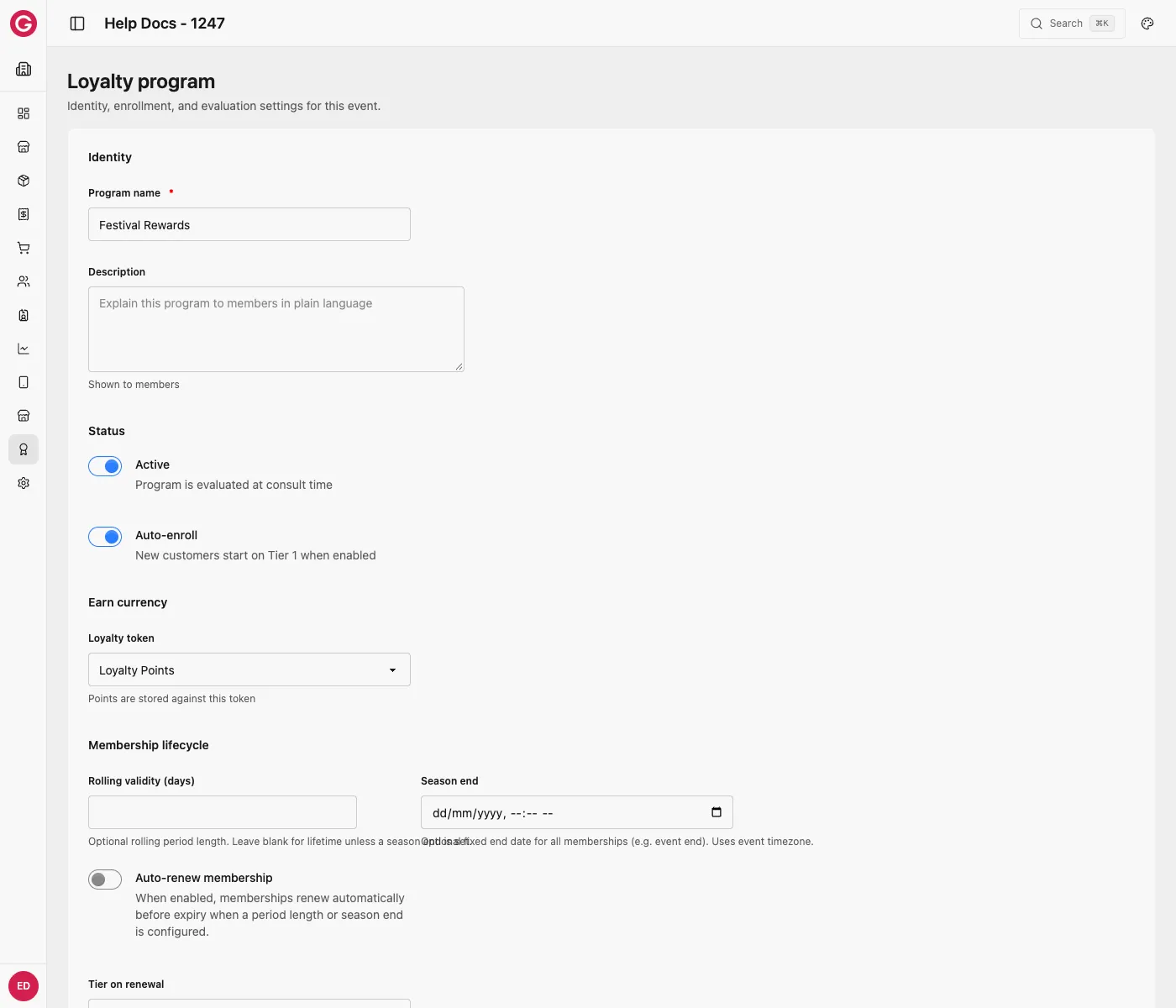
Program
- Open your event in Dashboard.
- Go to Loyalty → Program.
- Set the program name and membership options used by your event.
- Save changes.
The program is the container for tiers, rules, and rewards for this event.
Tiers
- Go to Loyalty → Tiers.
- Create or edit tiers in the order customers should progress.
- Configure auto-enrollment into the base tier when that fits your event.
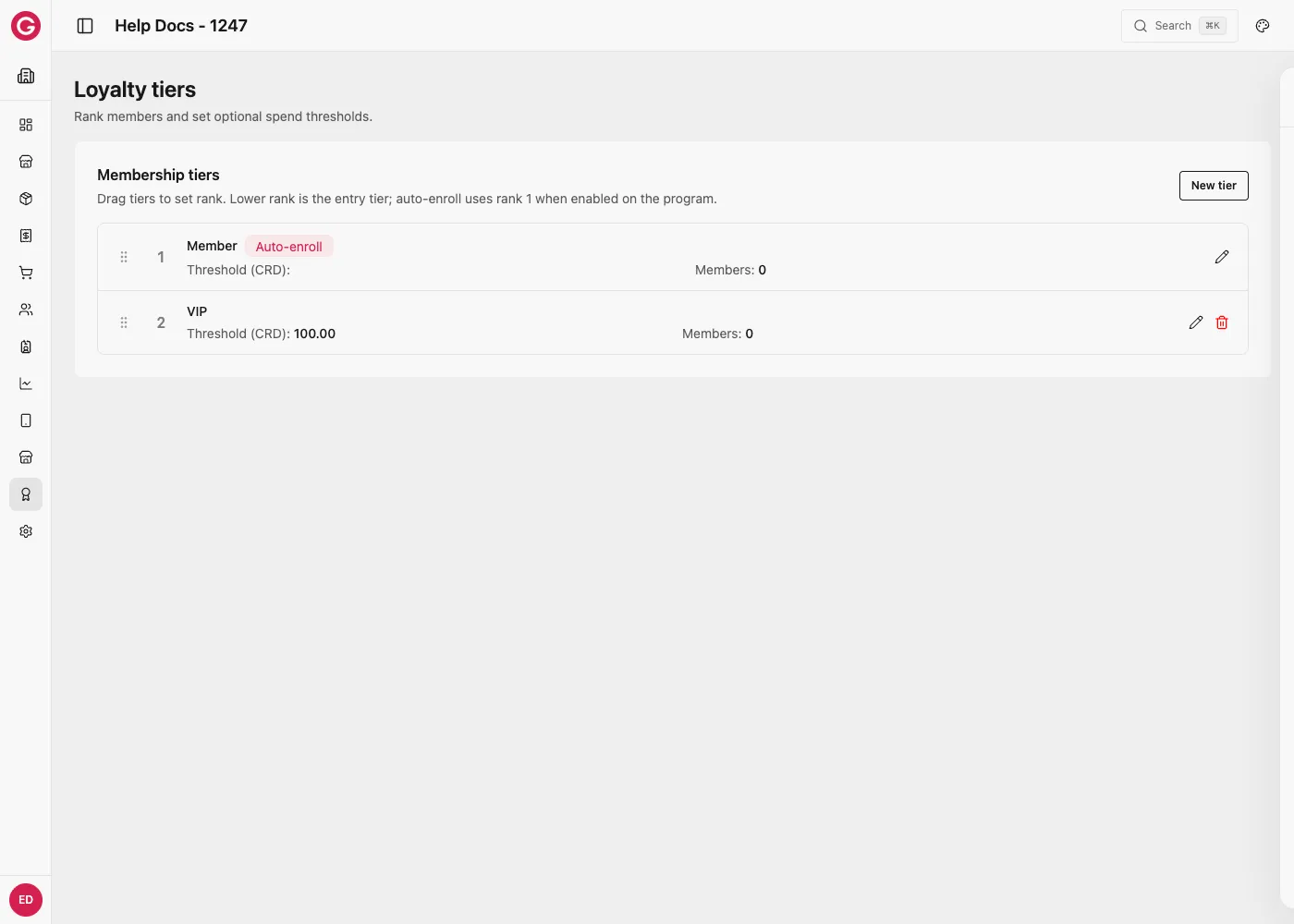
You can enroll members in bulk from a tier using CSV—see Memberships.
Packs and catalog
Some events attach loyalty enrollment to packs or catalog items so check-in or purchase enrolls the guest automatically. Confirm your pack configuration after the program exists.
Worked example: setting up “Festival Rewards”
A festival wants a loyalty program that rewards every wallet top-up and gives its biggest spenders a visible perk. The program itself only needs a few decisions before tiers and rules are built:
- Go to Loyalty → Program and name it something guests will recognize, for example Festival Rewards.
- Decide the auto-enrollment behavior: turn it on so any guest who tops up a wallet is automatically enrolled in the base tier, with no manual sign-up step.
- Under Earn currency, set Loyalty token to a dedicated token currency such as Loyalty Points, rather than reusing CRD. Points earned by rules are stored against this token, kept separate from real money balances.
- Save. The program now exists as a container, ready for tiers, rules, and rewards.
Everything a member earns, redeems, or qualifies for (points, discounts, free products) is configured on the pieces underneath the program, not on this page itself. Treat Program as the on/off switch and naming step, then move straight to Tiers.