
Transactions
Transactions is the event ledger of sales, purchases, check-ins, accesses, top-ups, refunds, and cashflow views. Every action recorded by a device or by the Dashboard appears here with its operation number.
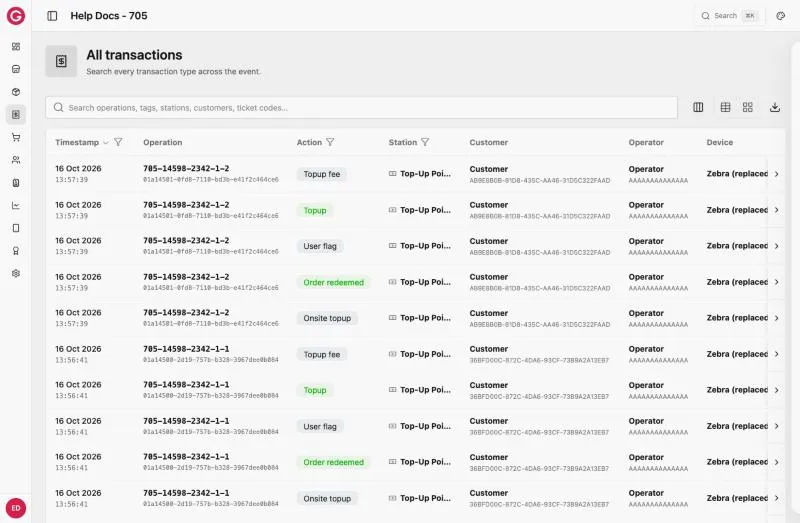
Open transactions
- Open your event in Dashboard.
- Click Transactions. It opens on Sales (“Sales & money sales”: credit and money sales, including cancellations).
- Choose another view from the menu if you need it: All transactions, Sales, Purchases, Check-ins, Accesses, Topups, Refunds, Inflows or Outflows.
For aggregated reporting, prefer Analytics. Station-scoped transaction views are available from each station’s Transactions tab as well.
Find a transaction
- Search with the box at the top: “Search operations, tags, stations, customers, ticket codes…”. For example, paste an operation number or a customer’s tag ID.
- Filter with the funnel icon on a column header, for example Timestamp (a date range, or Today, This week, This month), Action (Sale, Money sale, Cancel sale…), Station, Currency or Reconciliation.
- Sort by clicking a column name, for example Timestamp or Total.
- Export the current view as a CSV file with the download icon.
The list shows, for each transaction: Timestamp, Operation (number and UID), Action, Station, Customer, Operator, Device, Status, Currency, Net amount, Taxes, Tips, Discount, Total, Payment method and Reconciliation.
Transaction details
Click a transaction to open its details on the right:
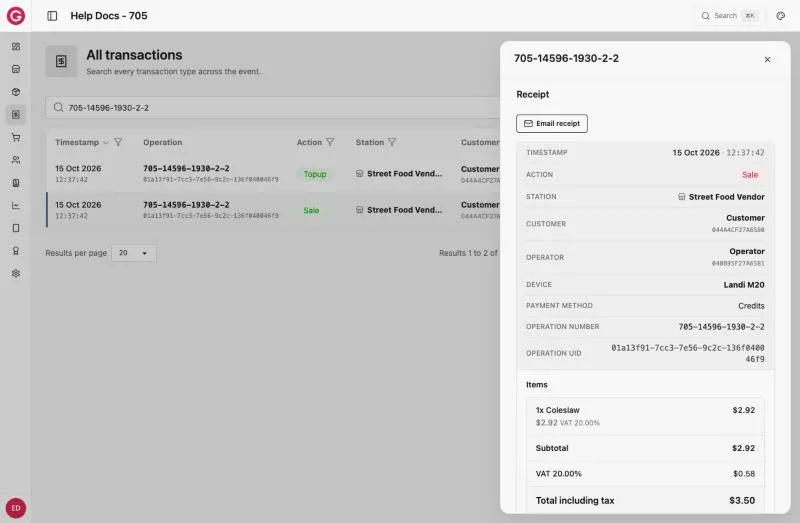
- Receipt with the reconciliation status (for example Reconciled) and Email receipt, to send the receipt to an email address.
- Timestamp, Action, Station, Customer, Operator, Device, Payment method, Operation number and Operation UID.
- Items, with Subtotal, tax and Total including tax.
- Payment breakdown: each payment that settled the transaction.
- For credit card payments, Gateway reconciliation: the latest status from the payment provider (for example paid), where it came from (for example webhook), and Verify with gateway to check it again.
A cancelled sale shows as, for example, Money Sale (Cancelled), with the cancelling operation’s number.
Operation numbers
Every transaction has an operation number, for example 705-14596-1930-2-1. It identifies where the transaction was made:
| Part | Example | Meaning |
|---|---|---|
| 1 | 705 | The event |
| 2 | 14596 | The station (the number in the station’s Dashboard address, /stations/14596) |
| 3 | 1930 | The device. 0 means the transaction was created by the server, not a device, for example a refund made from a Customer Service search (705-14596-0-1). |
| 4 | 2 | The cycle. A new cycle starts for each station and device combination when the device is Sync & Locked and restaged. |
| 5 | 1 | The serial: the count of transactions at that station on that device within the cycle |
One operation can create several records with the same operation number, for example a sale and the loyalty points it earned. A transaction also has an Operation UID, a long unique code such as 01a13ed0-d83f-7dfc-af5c-d823e241f54b.
You can find the operation number:
- On the printed receipt (Operation #).
- On the device, in History → the transaction.
- On the device, at a Customer Service station’s SEARCH.
- In Dashboard, in the Operation column of Transactions, and in a station’s Transactions tab.