
Modifier groups
Modifier groups are reusable sets of modifier products (addons, choices, removals). Attach the same group to many parent products.
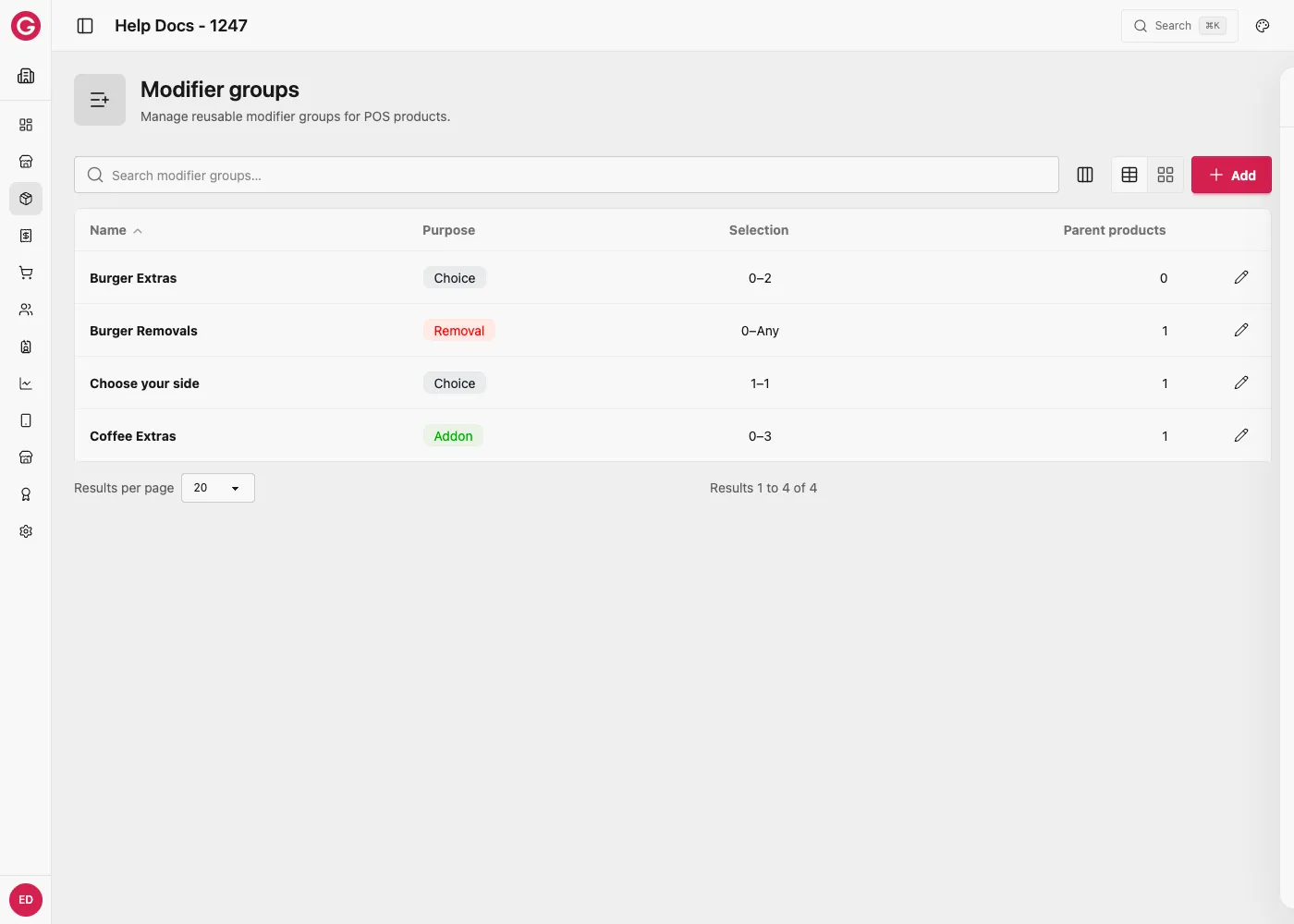
Group settings
| Field | Description |
|---|---|
| Name | Group label on POS |
| Purpose | choice, addon, or removal |
| Min / Max selection | Bounds for how many modifiers cashiers must/may pick (blank = unbounded; min 0 = skippable) |
Products in a group
- Open Catalog → Modifier groups → a group.
- On the Products tab, add existing products (often mode modifier or reusable standard SKUs such as Fries) or create new ones.
- Reorder for POS.
- Optionally set price overrides for a modifier in this group: use the product’s catalog prices, or set group-level prices for each currency (including 0 for included sides).
Pricing: standalone vs inside a group
Products keep their own catalog price for à la carte sales. Inside a group you can charge a different amount.
| Scenario | Parent price | Modifier in group |
|---|---|---|
| À la carte Burger + Fries | Burger £10 + Fries £5 as separate lines | No group needed |
| Burger Meal combo | Meal parent £12 | Fries £0, Salad £0, Onion Rings +£1 |
| Burger extras | Burger £10 | Cheese +£1, Bacon +£2 |
Full walkthrough: Pricing — Burger + Fries examples.
Attach to products
- From a product → Modifiers → Attach existing group or create a new group, or
- From the modifier group → Parent products list.
On the parent product, group prices are read-only—edit them on the modifier group.
Selection rules (quick reference)
| Min / Max | Result |
|---|---|
| 0 / unlimited | Optional extras |
| 1 / 1 | Choose exactly one (e.g. meal side) |
| 1 / 2 | Choose one or two |
| 0 / 3 | Up to three optional selections |
Worked example 1: required choice (the meal side)
- Create a modifier group called Choose your side.
- Set Purpose to choice, Min selection to
1, Max selection to1. The cashier must pick exactly one. - On the Products tab, add Fries, Salad, and Onion Rings.
- Set group prices: Fries 0.00 (included), Salad 0.00 (included), Onion Rings 1.00 (small upgrade charge).
- Attach this group to the Burger Meal product.
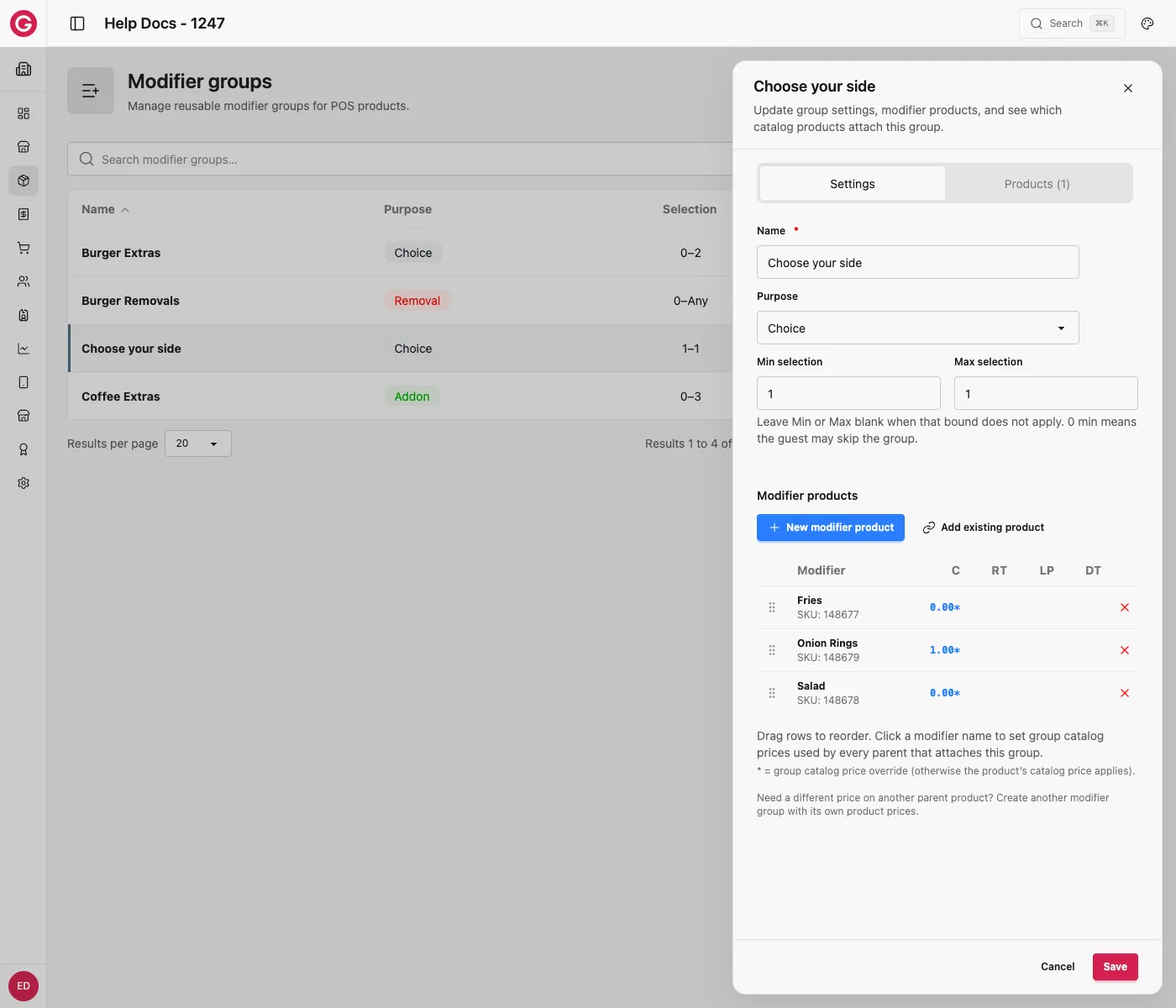
On Touch, tapping Burger Meal immediately prompts the cashier to pick a side before the sale can continue, because min selection is 1. See the full combo pricing walkthrough for how this interacts with the meal’s own price.
Worked example 2: optional addons (coffee extras)
Addons are the opposite case: nothing is required, but the guest can pile on extras.
- Create a modifier group called Coffee Extras.
- Set Purpose to addon, Min selection to
0, Max selection to3(or leave Max blank for no cap). - Add products Extra Shot (1.00 C), Oat Milk (0.50 C), and Vanilla Syrup (0.50 C) to the group, each priced as an add-on.
- Attach the group to the Filter Coffee product.
A guest can buy a plain Filter Coffee and add nothing, or add all three extras in the same sale. Because Min is 0, Touch never blocks checkout waiting for a selection here, unlike the required side-dish example above.
Worked example 3: free removals (no onions)
Removal groups do not add a charge, they record a kitchen instruction.
- Create a modifier group called Burger Removals.
- Set Purpose to removal, Min selection to
0, Max selection left blank (any number of removals allowed). - Add products such as No Onions, No Pickles, and No Cheese, each priced at 0.00 since removing an ingredient is free.
- Attach the group to the Beef Burger product.
A cashier can tap any combination of removals, or none at all, and the basket price for the Beef Burger never changes. The removal shows on the kitchen ticket so the right burger reaches the right guest.