
Print Settings
Print Settings chooses how this device prints receipts: the print engine, the printer and the paper. It only affects this device. What the receipt says (headers, footers, logos and print width) is set in the Dashboard: see Receipts.
Open Print Settings
Open it either way:
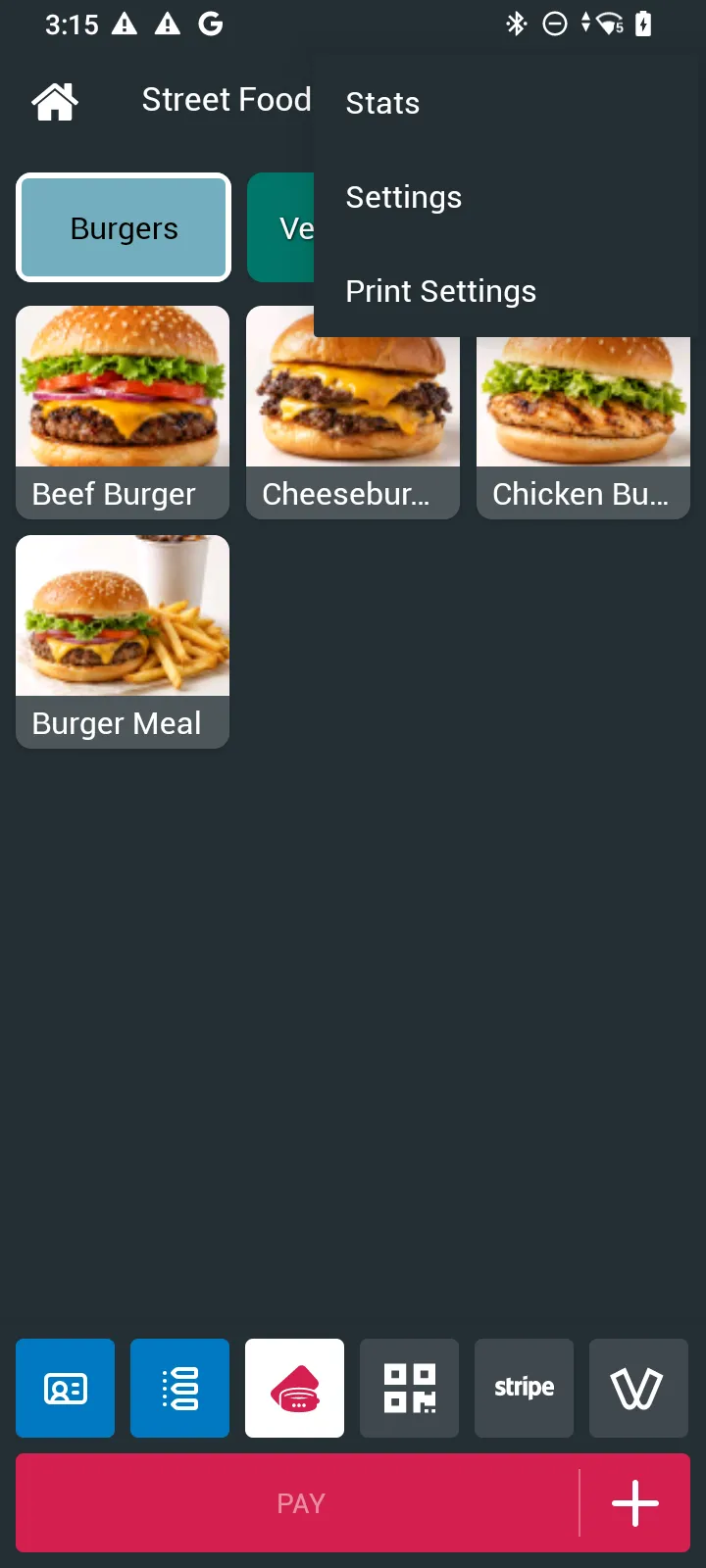
- From a station: tap ⋮ (top right) → Print Settings.
- From the login screen: drag up from the bottom to open the Device Management Menu → Print Settings. See Sync with Server.
Choose the print engine
| Quickprinter | Native | |
|---|---|---|
| What it needs | The separate Quickprinter app, version 1.7.3 or later, installed on the device | Nothing extra: the app prints directly |
| Printers | Printers Quickprinter supports | ESC/POS printers over USB, Bluetooth or network (TCP), including a device’s built-in printer |
| QR codes and images on receipts | Only with the paid version of Quickprinter | Yes |
If your event prints wallet QR codes or logos on receipts, use Native (or the paid version of Quickprinter).
Set up a printer (Native)
-
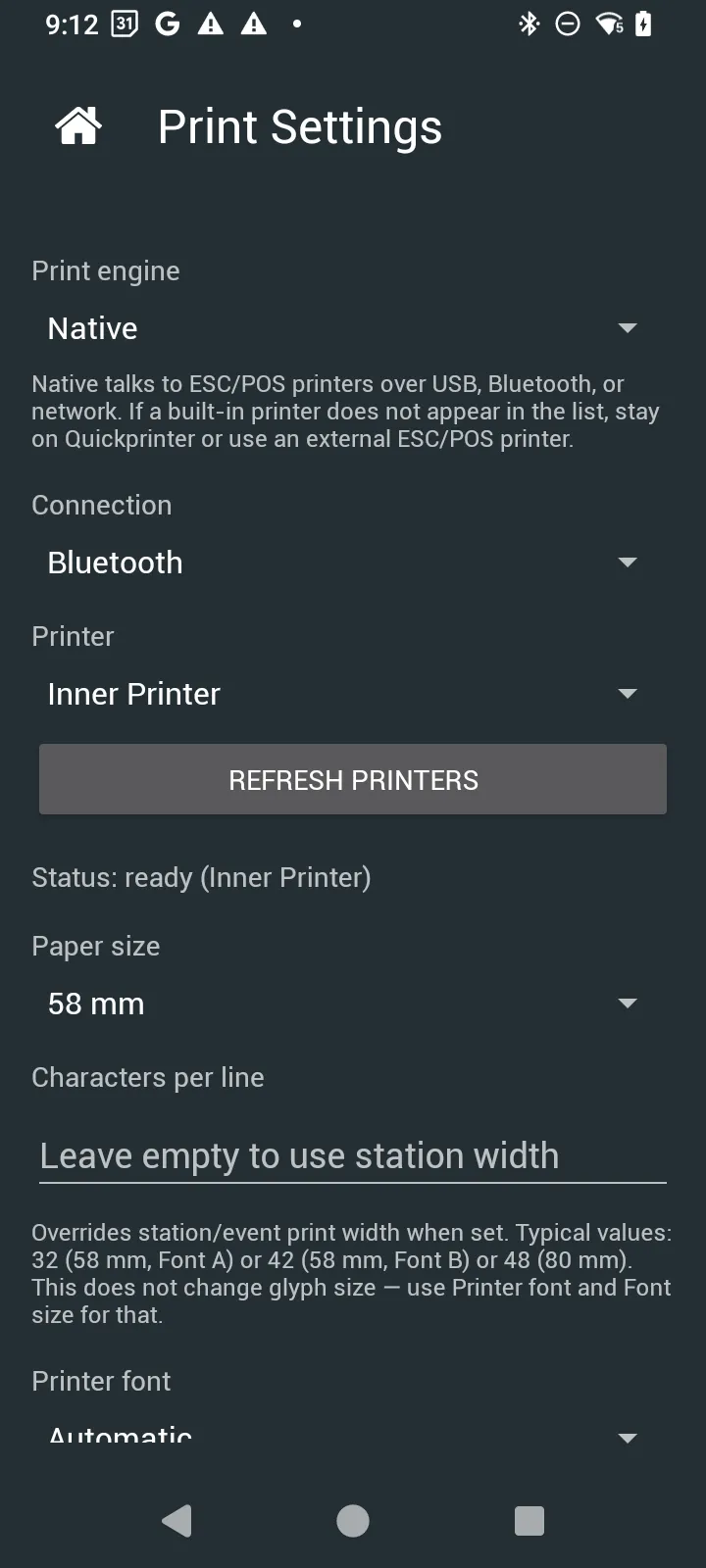
Open Print Settings and set Print engine to Native.
-
Choose the Connection: USB, Bluetooth or Network (TCP).
-
Choose the Printer, or tap REFRESH PRINTERS to search again. Status shows ready when the printer is set up.
-
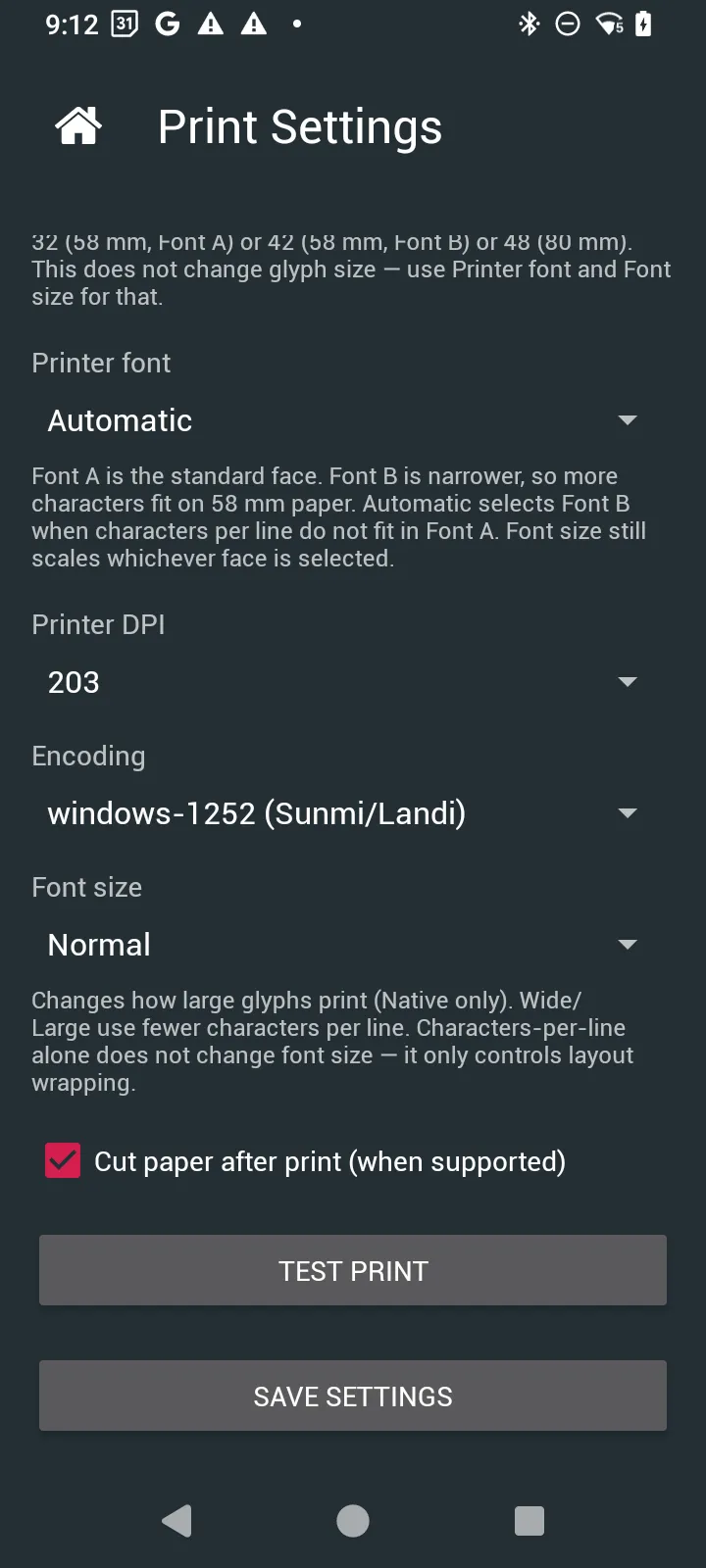
Check the paper and font settings (see below), then tap SAVE SETTINGS. Leaving without saving discards your changes.
| Setting | What it does |
|---|---|
| Paper size | The width of the paper roll, for example 58 mm. |
| Characters per line | Leave empty to use the station or event print width. Overrides it when set. Typical values: 32 (58 mm, Font A), 42 (58 mm, Font B), 48 (80 mm). |
| Printer font | Automatic, Font A (standard) or Font B (condensed). Font B fits more characters on 58 mm paper. Automatic uses Font B when the line does not fit in Font A. |
| Printer DPI | The printer’s resolution, for example 203. |
| Encoding | The character set sent to the printer, for example windows-1252 (Sunmi/Landi). |
| Font size | How large characters print. Larger sizes fit fewer characters per line. |
| Cut paper after print | Cuts the paper after each receipt, when the printer supports it. |
| TEST PRINT | Prints a test receipt. |
Receipts Receipt headers, footers, logos and print width.