
POS Validation Station
POS Validation Stations control entry to something that is either included in a pass or paid for on the spot, such as a ride or an attraction. A customer with a valid pass taps their tag and goes in. A customer without one pays for entry with credits or tokens.
- A pass lets one person in per tap. Every tap or scan uses one entry: a Ride Pass goes down by one, an Unlimited Ride Pass never runs out.
- Without a pass, the customer pays for entry with credits or tokens.
- The station’s products decide its layout on the device: a single-product station has one product, a multi-product station has several products in categories (for example Peak and Off Peak).
To operate a POS Validation station:
-
Your device must be registered and staged with the event
-
Your event must have a staff accreditation station
-
You must have a tag with valid manager or operator permissions
Login to your station
-
Launch the Glownet Application on your device.
-
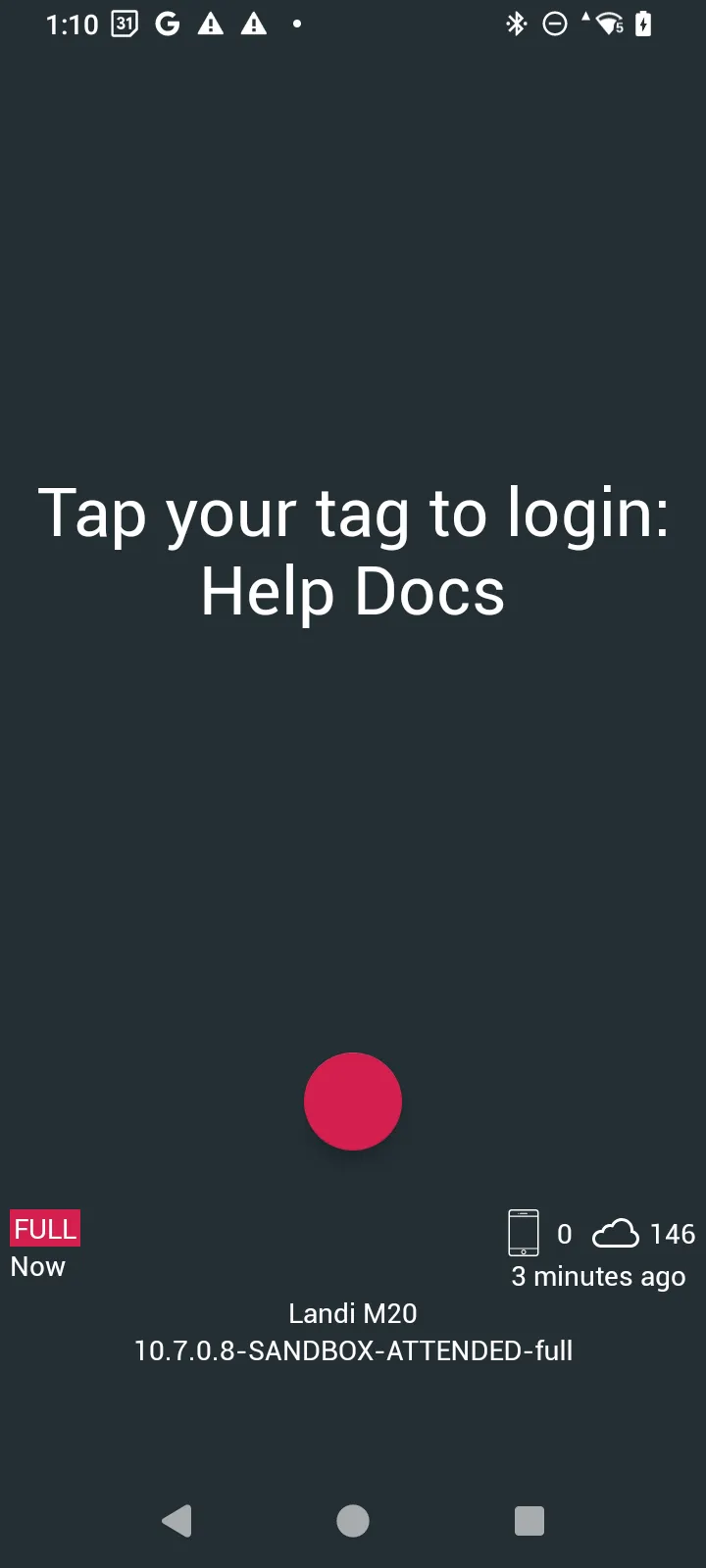
Tap your Tag firmly against the device NFC reader to log into your station
-
POS Validation stations are on the Monetary tab, under VALIDATION.
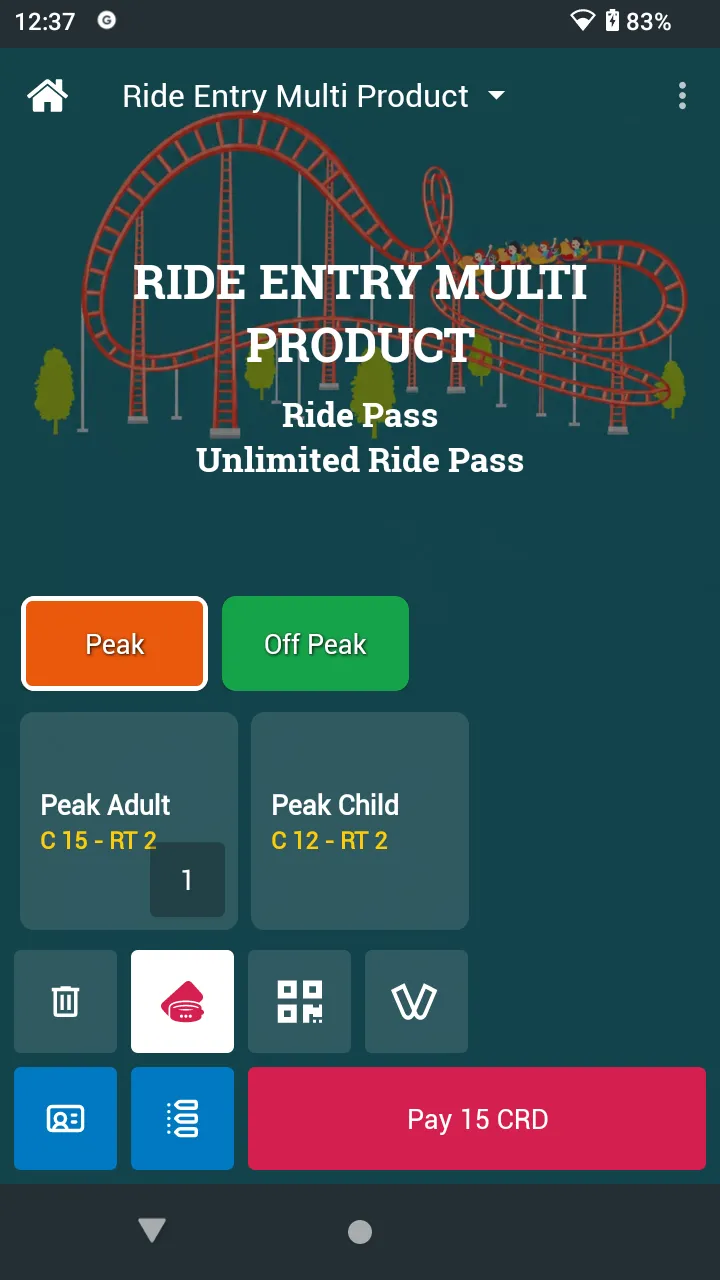
Multi-product station
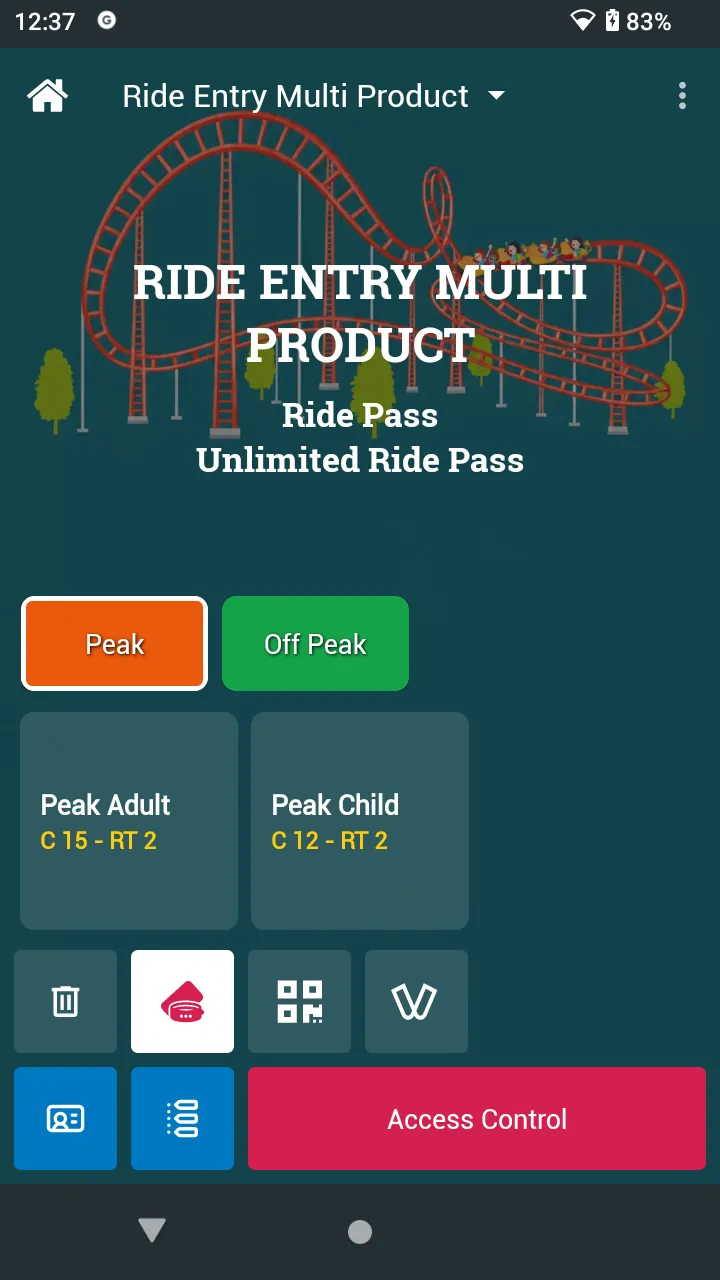
| Part | What it does |
|---|---|
| Header | The station name and the passes it accepts. |
| Category buttons | Switch between product groups, for example Peak and Off Peak. |
| Product tiles | Name and prices (for example C 15 - RT 2). Tap to add one; tap again to add another. |
| Bin | Clears the selected products. |
| Payment tiles | How the customer pays, for example RFID tag or QR. |
| Touchpoint / History | Check a tag; this device’s sales at this station. |
| Main button | Access Control when no product is selected (the station is ready for passes); Pay with the total (for example Pay 15 CRD) when a product is selected. |
Let a customer in with a pass
With no product selected, the station is ready for passes: the customer just taps their tag. You do not need to press anything.
-
Make sure no product is selected (tap the bin if needed). The main button reads Access Control.
-
Ask the customer to tap their Tag. (Optional) To scan a digital tag QR code instead, tap Access Control and switch to QR.
-
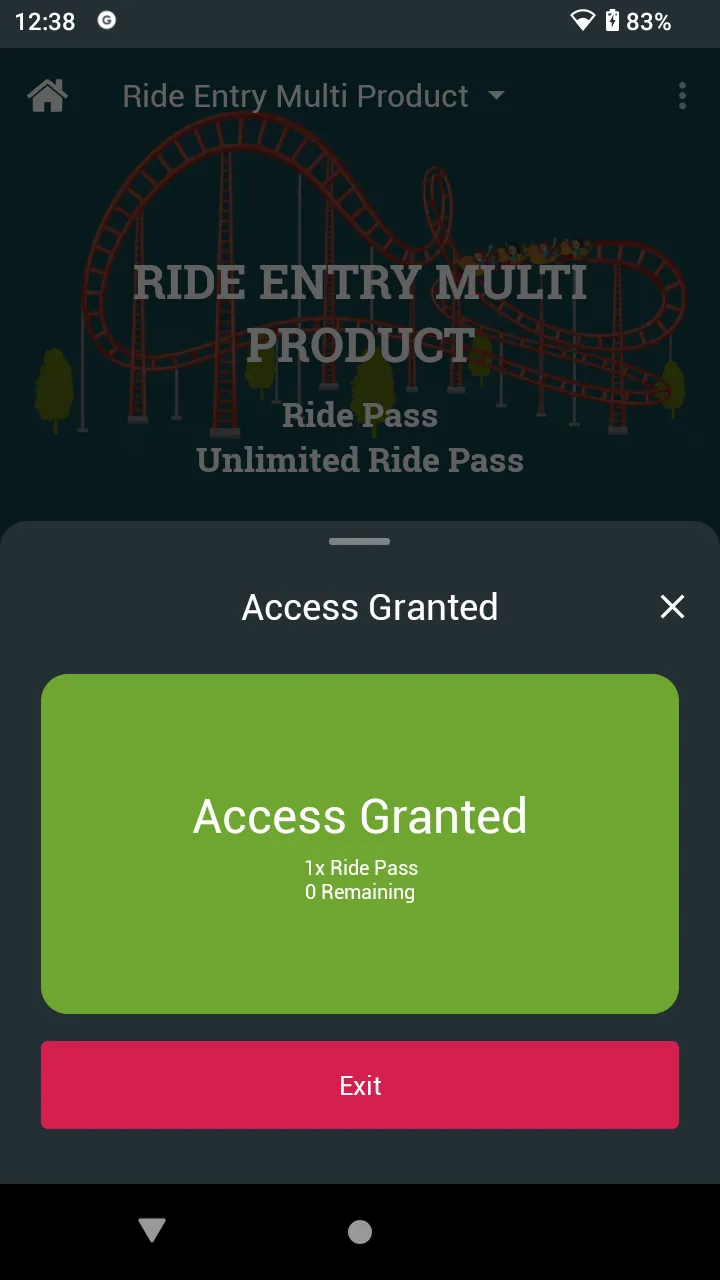
Access Granted shows the pass used and, for a limited pass, how many are left (for example “1x Ride Pass, 0 Remaining”). Let the customer in and tap Exit.
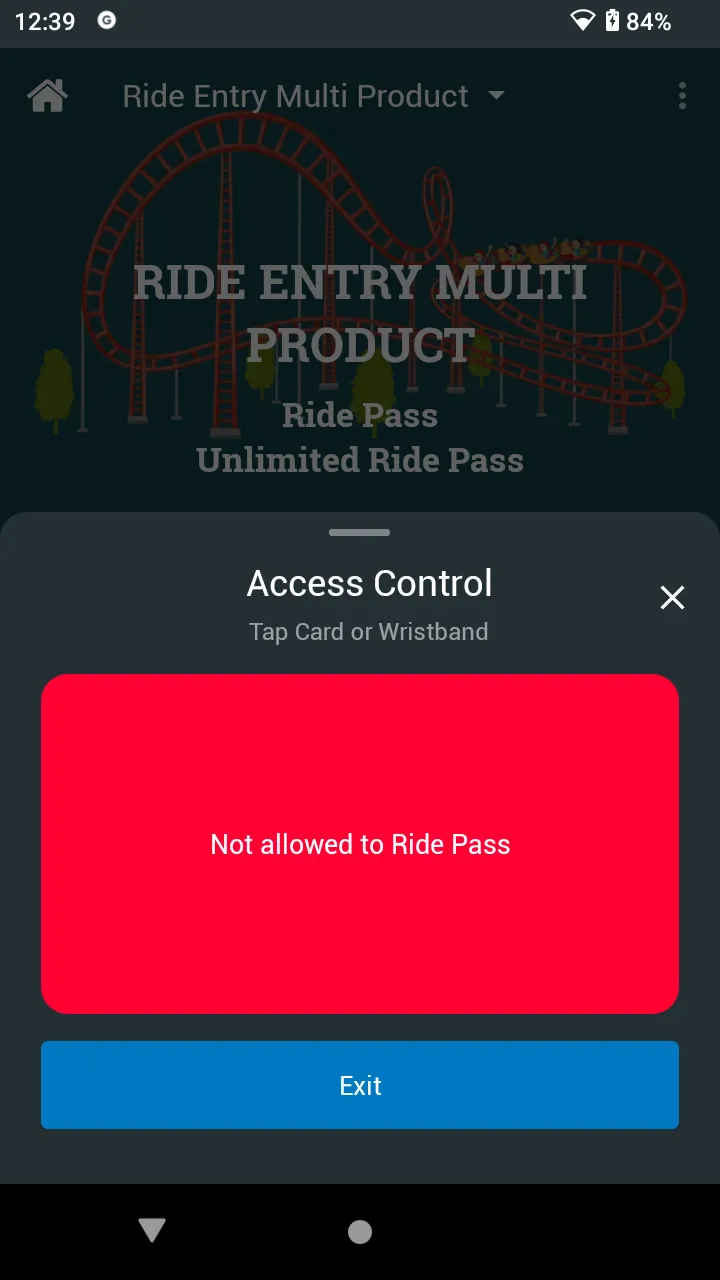
If the tag has no pass left, the device shows “Not allowed to Ride Pass” (or the name of the pass). The customer can pay for entry instead.
Sell entry
-
Tap the product, for example Peak Adult. Tap it again, or tap other products, to sell more in one go. The button changes to Pay with the total, for example Pay 15 CRD.
-
Choose the payment tile (for example RFID tag) and tap Pay.
-
Pay with Wallet opens with the amount. Ask the customer to tap their Tag.
-
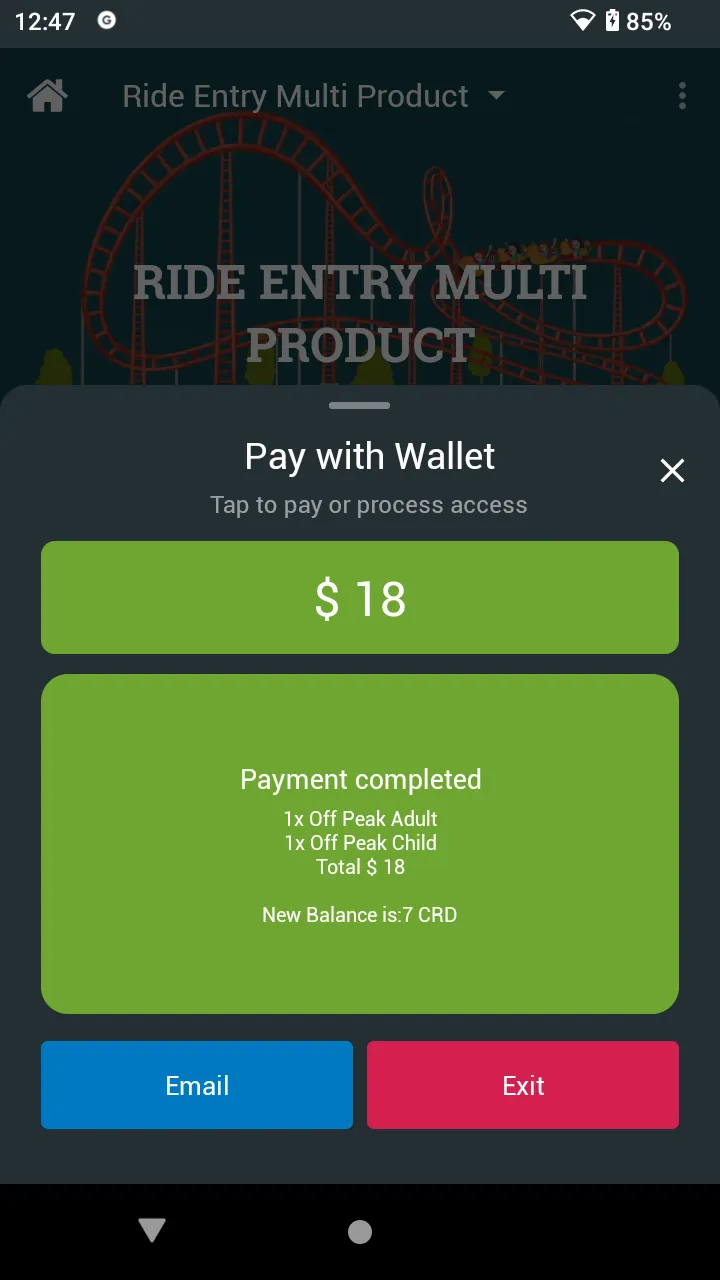
Payment completed lists the products, the Total and the tag’s new balance. Tap Email for a receipt, or Exit.
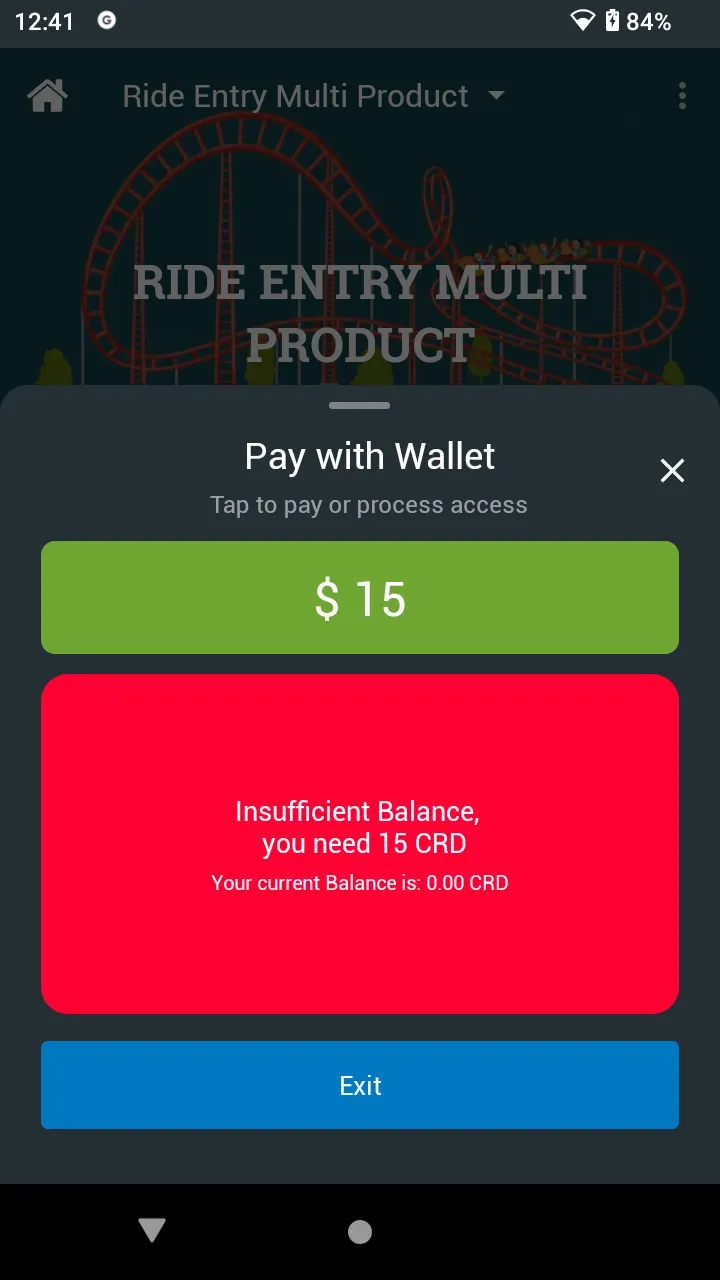
If the tag does not have enough credit, the device shows “Insufficient Balance, you need 15 CRD” and the current balance.
Single-product station
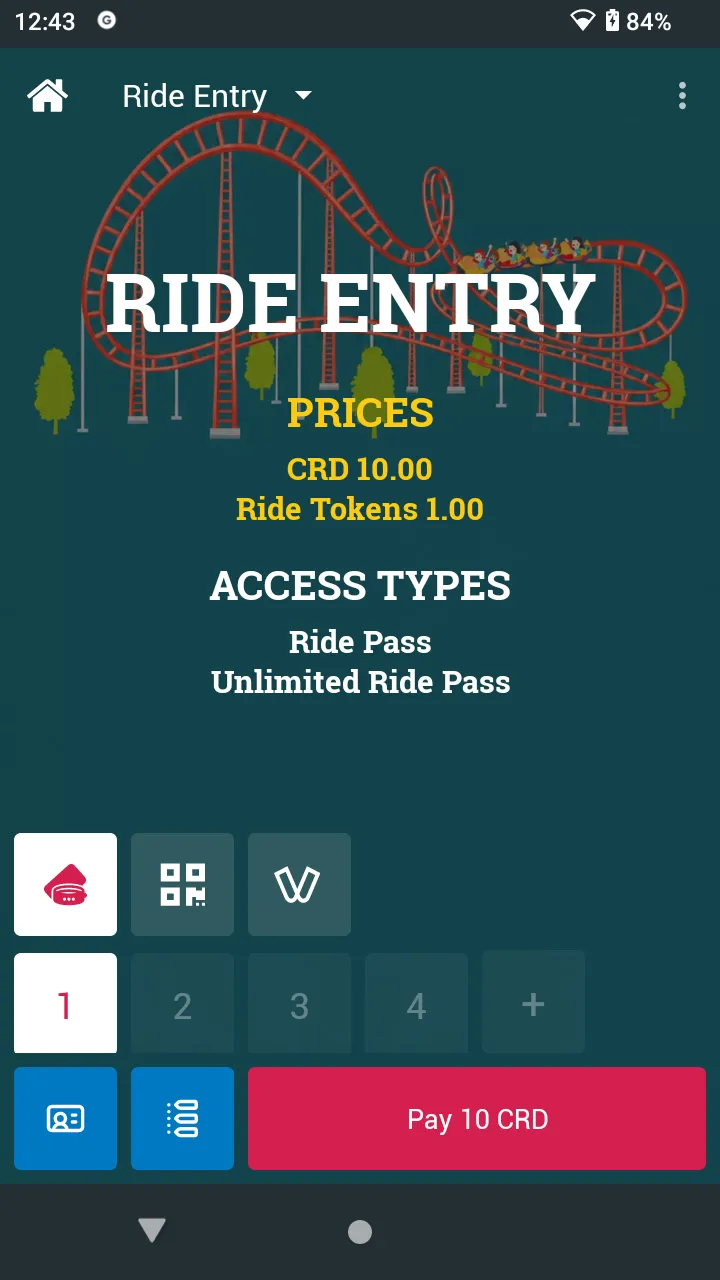
The screen shows the product’s PRICES and the ACCESS TYPES it accepts. There is no Access Control button: one tap does both.
-
Tap Pay (for example Pay 10 CRD).
-
Pay with Wallet reads “Tap to pay or process access”. Ask the customer to tap their Tag.
-
One of two things happens:
- The tag has a valid pass: Access Granted (for example “1x Unlimited Ride Pass”). Nothing is charged.
- It has no pass: the entry is paid from the tag: Payment completed, for example “1x Ride Entry, Total $ 10, New Balance is: 40 CRD”.
-
Tap Exit.
Sell several entries at once
With a tag, each tap is one entry. To sell several entries in one payment at a single-product station, use another payment method the station offers, such as a credit card or cash:
-
Tap the payment tile, for example the credit card tile. The quantity buttons become available.
-
Tap 1, 2, 3 or 4, or tap + and type the number in Enter quantity, then OK. The button shows the total, for example Pay 30 CRD for 3 entries.
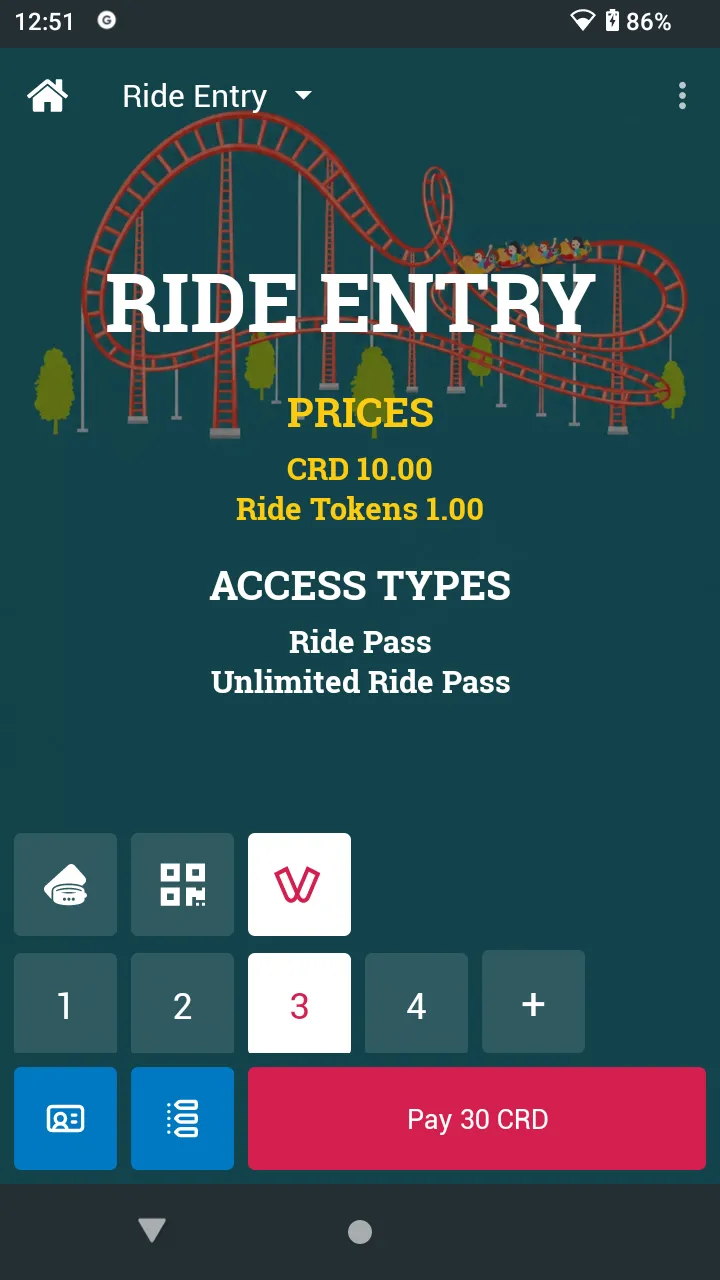
-
Tap Pay and take the payment.
When the RFID (tag) tile is selected, the quantity stays at 1 and the other buttons are greyed out.
History
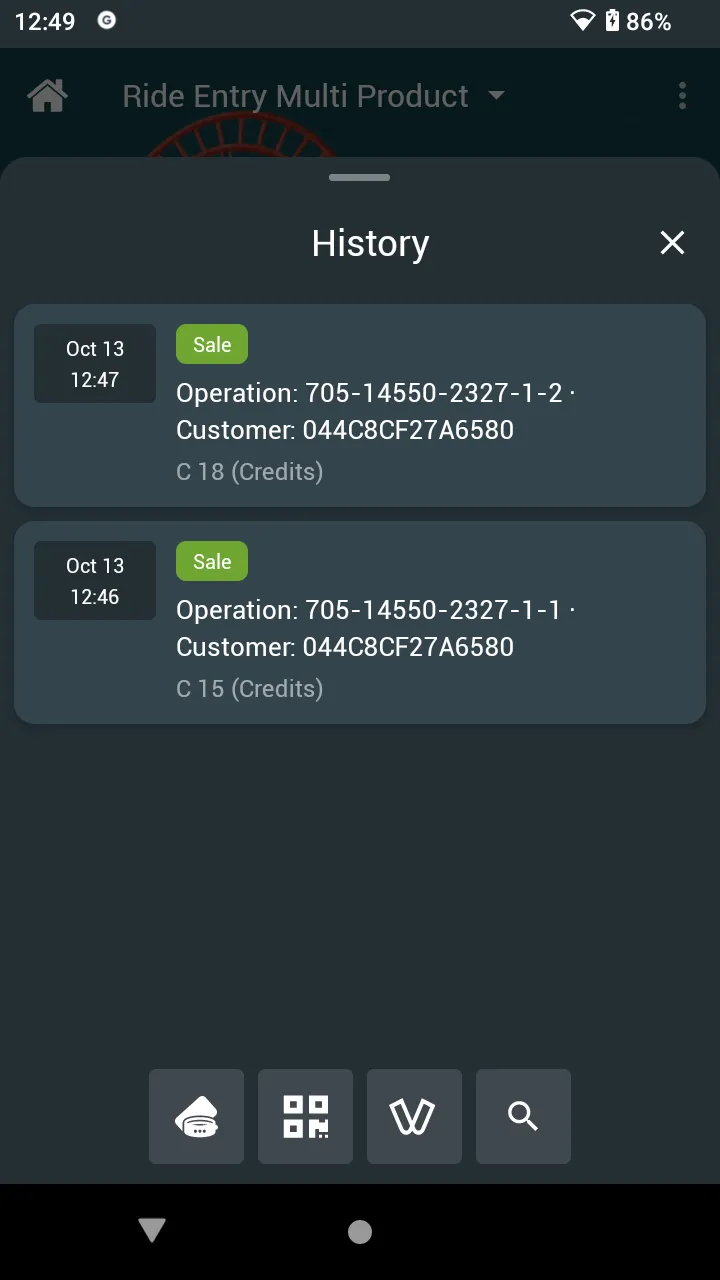
Tap History (list icon) to see this device’s sales at this station: date, time, Sale, the operation number, the customer’s tag and the amount. Use the buttons at the bottom to find a sale by tapping the tag, scanning its QR code, or searching.
Stats and device settings
⋮ (top right) has Stats, Settings and Print Settings.
- Stats: entries sold this session and the station’s sales. See Station Stats.
- Settings: the same view options as a Vendor station (columns, product name font size, payment bar, and which payment methods show). See Device settings.