
Tips on Touch
When tips are enabled (Dashboard Tips / Modules), Touch shows a tip screen on supported money flows.
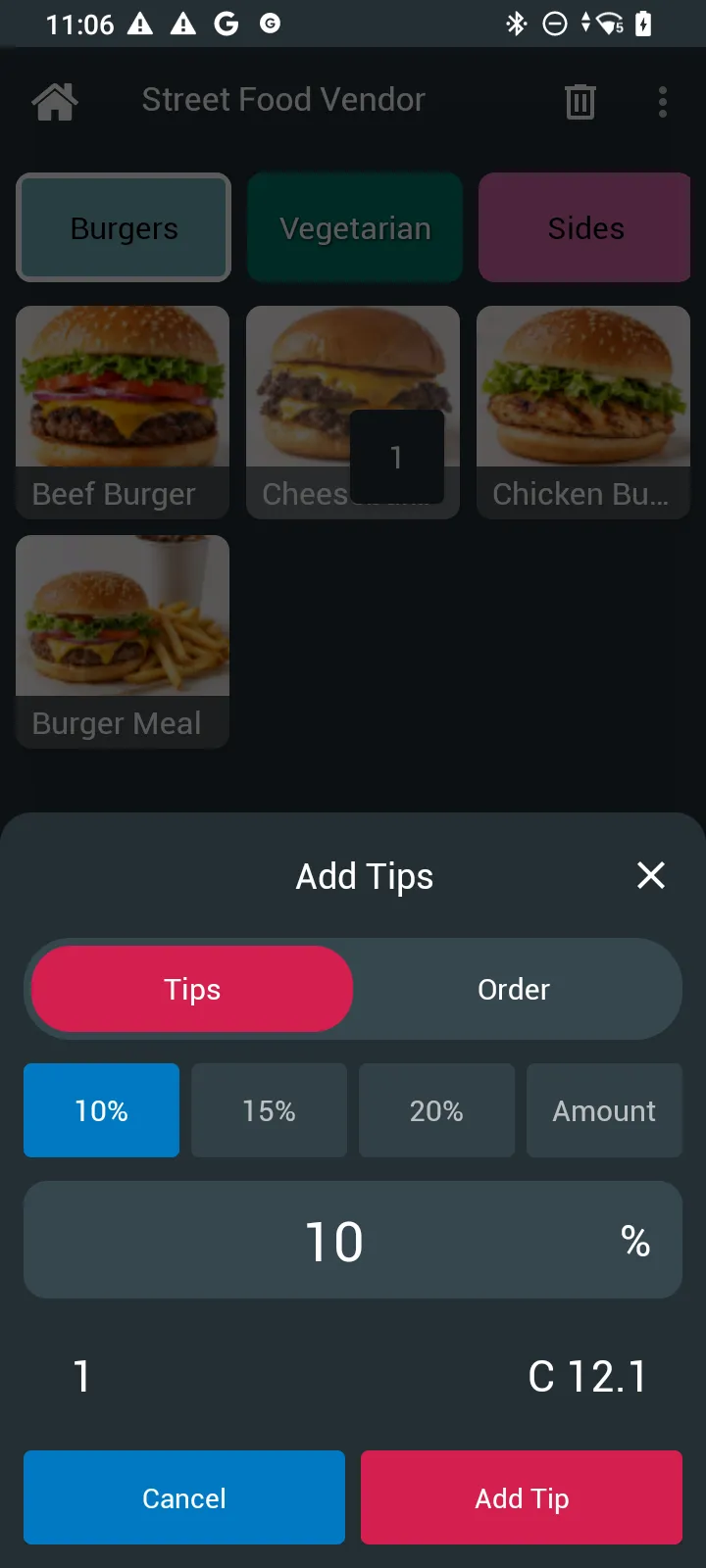
Collect a tip
- Complete the cart and proceed to pay.
- When the tip screen appears, choose a percentage preset, enter a custom tip, or select No tip.
- Continue with the chosen payment method (cash, card, SoftPOS, …).
Tips appear on receipts and in tip-related analytics when configured.
Station overrides
Stations may follow the event tip settings or override them. If the tip screen never appears, ask an admin to check event Modules → Tips and the station General → Tips setting, then sync the device.
Admin: payments & tips Enable tips and presets.